YMS: yard check (counting what is actually in the yard)
Last updated 2026-10-31
Periodically count the equipment actually sitting in the yard and compare it against the system records.
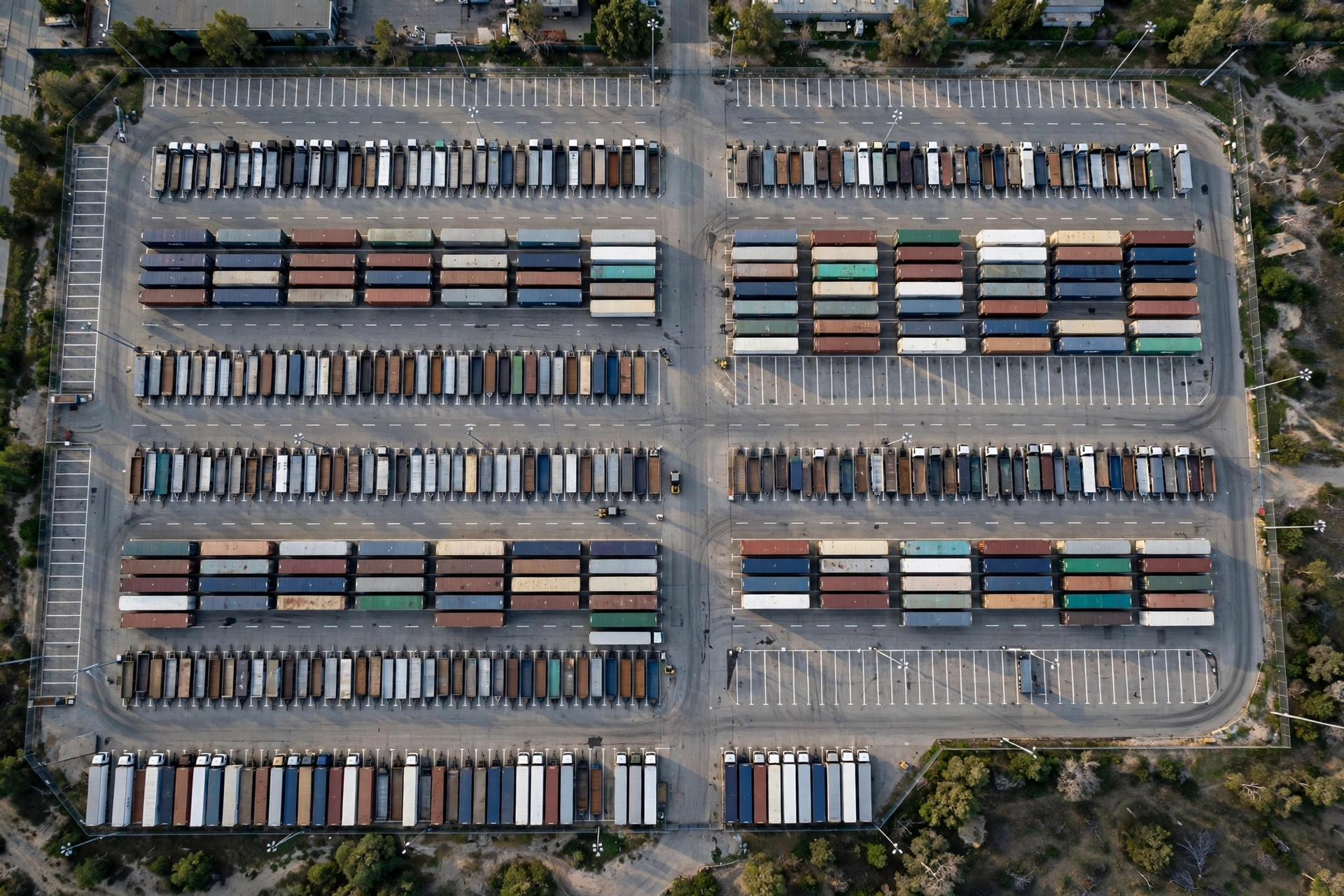
A yard check is a physical count: the system says 50 trailers are in_yard — you walk the yard (or send someone) and count what is actually there. Anything that does not match gets investigated.
Before you start: four choices on the create form#
- Scope: whole yard or one zone, and which kinds of spots count — dock doors and yard spots are the usual pair. Create the task under YMS → Yard Checks → “+ New yard check”; you land on its detail page right away.
- Blind or open: blind is the default — the person walking the yard cannot see what the system expects, so the count stays honest. Open shows the book values and is only for quick spot checks.
- Assignee and field checker are two different fields: the assignee owns the task; the field checker is the person who actually walks the yard (they can be an outside person — just type their name).
- Method: paper sheet or phone. Paper: print the sheet, walk with it, and type the results in afterwards. Phone: pick “mobile” when you create the task and assign it — the assignee opens it in the mobile app and records each spot right there in the yard.
Count in 6 steps#
- Create the yard check (YC-000001) with the four choices above.
- Press “Start check”. At that exact moment the system freezes a snapshot of the books — trucks that move afterwards do not change what this check compares against. The snapshot time shows in the detail page header.
- Print the check sheet and walk the yard in the printed order: write the unit number you actually see at each spot, circle Full or Empty, and note any damage. On a blind sheet the book numbers are not printed. A spot you cannot check (blocked, no access) gets explained in the footer lines.
- Back at the desk, type the sheet into the “Enter results” tab — Enter saves the row and jumps to the next. Leave the unit box empty for an empty spot. Damage needs a note or a photo link, otherwise the row will not save. A spot you could not check gets a “could not check” reason instead of a number.
- Press “Finish check”: full (everything checked), partial (some spots could not be checked — they stay out of the differences), or force finish (needs a reason). The system writes the result summary itself and lists every difference: wrong spot, missing, not on the books, full/empty mismatch, damage.
- Review and apply: a reviewer opens “Review & apply” and decides each difference — approve the fix (a reason is required), note it only, or send it back as “not sure”. A send-back creates a recheck task with only the disputed spots, which can go to a different person. Only after you press “Apply approved fixes” do the books change: locations get corrected, unrecorded units get registered, missing units get a missing flag. A unit busy at a dock is never moved by a check — the apply step blocks it and tells you why.
Doing it on the phone (mobile tasks)#
- Open the mobile app → YMS: your yard checks sit in their own “Yard checks” group above the move tasks. Tap one to see its scope, blind/open mode and progress, then tap “Start task” — that tap is also what freezes the book snapshot.
- Tap “Start checking” and the app walks you spot by spot in yard order. At each spot: scan the unit number (or type it), or tap “This spot is empty”. Pick Loaded or Empty, and if the unit is damaged, take a photo or write what is wrong — a damage record will not save without one of the two. Saving jumps you to the next spot, and you can tap any recorded spot in the “All spots” list to fix it before you finish.
- No barcode on the unit? Tap the camera button next to the unit-number box and take a photo of the printed or sprayed number instead. The app reads the number and shows it back to you first — check it, fix it if the photo was blurry, or pick the right one if several are listed. Nothing is filled in until you tap “Use this number”. If nothing is found, retake the photo or just type the number as before. The photo is kept with this spot’s photos.
- On blind tasks the phone never shows the book values — each spot just says “Recorded”. That is on purpose: the count first, the comparison later.
- A spot you cannot reach gets “Could not check this spot” with a reason — it stays unchecked and never counts as a difference. When you are done, go back to the task page and finish: all checked, partial, or force close with a reason.
- Review also works on the phone: once the task is finished, its page lists every difference — decide each one (approve the fix with a reason, note only, or send back for a recheck), then tap “Apply differences”. The same rule as on desktop applies: the person who counted cannot review their own check.
Three rules worth knowing#
- The counter cannot review their own check: whoever walked or typed the check is blocked from reviewing it. Your organization can allow self-review in settings — a self-review is always flagged in the activity log.
- A full/empty mismatch never rewrites the unit: it only files an exception for the warehouse side to verify, because “full” in the yard and “loaded” in the warehouse are decided by the loading work, not by the count.
- “Missing” is a flag, not a write-off: a unit marked missing stays on the exception radar until it is seen again — at the gate, in a move, or in the next check — and then the flag clears itself. Every apply is logged with who approved it, the reason, and the from/to spots, in the task’s Activity tab and in the unit’s own history.
Count zone by zone when the yard is big — a whole-yard count in one go is where mistakes hide. And start the check at a quiet moment: the books freeze when you press Start.
Docklify features used in this article#
- YMS → Yard Checks: create, detail page, print sheet, enter results, review & apply, activity log.
- YMS → Equipment → a unit’s History tab: yard check fixes show up in the unit’s own timeline.
- Master Data → Reason Codes: the “Yard check adjustment” and “Yard check — could not check” lists your reviewers and counters pick from.
- Mobile app → YMS → Yard checks group: tasks assigned to you, spot-by-spot recording with scanning, damage photos, finish and review on the phone.