Load tasks and milk runs: loading in the right order
How a load task works on the phone: Step 1 scan pallets in loading sequence; Step 2 record the Pro, seal and trailer numbers, take the seal and trailer photos, and collect both signatures. Milk runs define multi-stop delivery order; the system enforces LIFO loading. Short a few pallets? Close the step with a reason. Missing pallet? Report it.
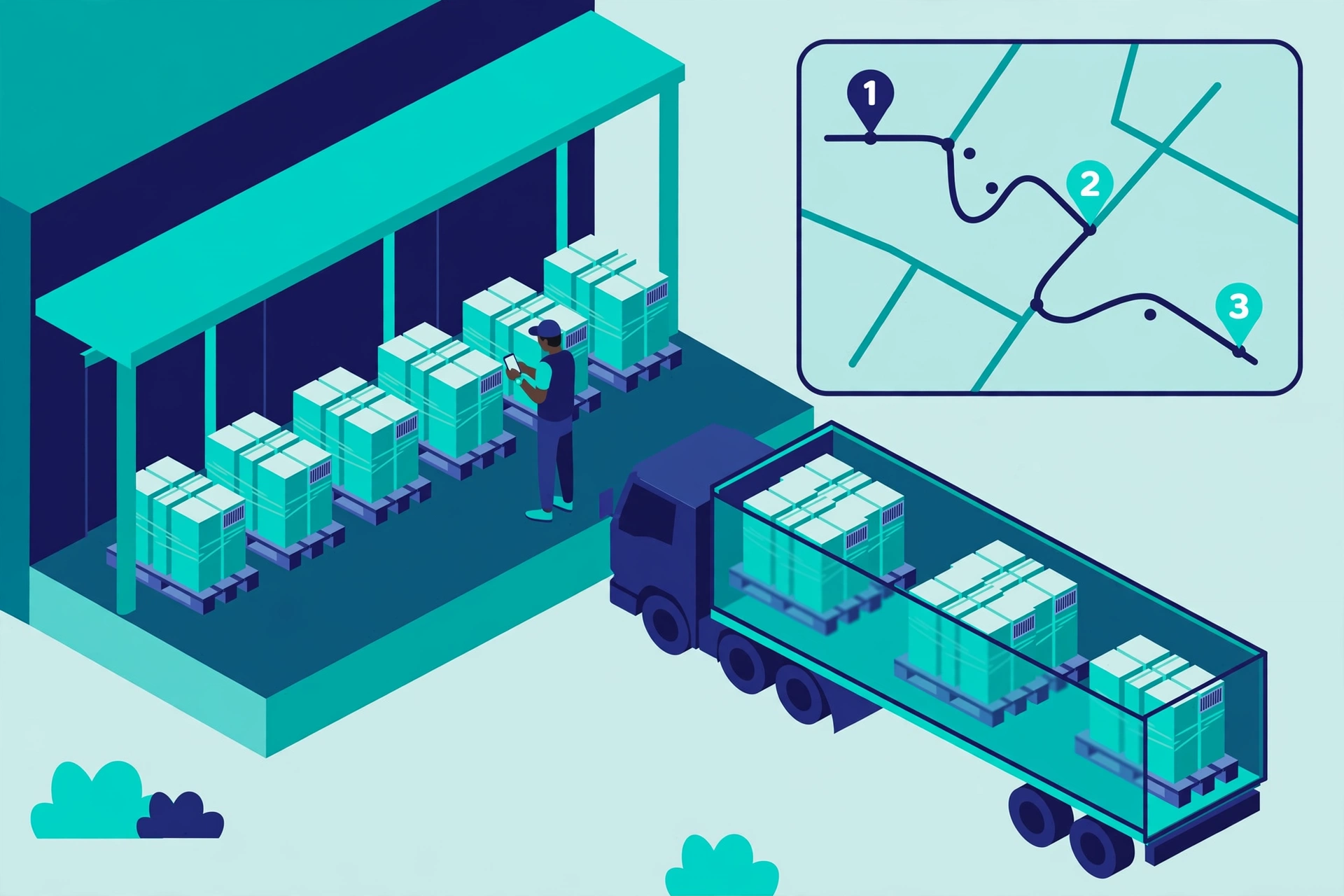
What is a load task?#
A load (one or more outbound orders) is ready. Select the load, generate a load task, assign it to a worker and a dock. The worker opens it on the phone and works through two steps.
Step 1: Load pallets#
Open the task and tap Start task. The phone lists the orders in loading sequence — each with its number in line and how many pallets are expected and already scanned; the ring at the top shows overall progress. Scan each staged pallet LPN (type it, scan it, or pick it from the list). The system only accepts pallets from the order you are on: finish one order before the next starts, and an LPN that does not belong — or a pallet already loaded or shipped — is stopped with a plain-language message. You can take photos of the loading at any time; they are saved on the task. If the sequence is wrong, fix the order sequence on the desktop Load page and refresh the task — pallets already scanned stay counted.
Step 2: Collect data — numbers, photos, signatures#
With the pallets on the truck, record the Pro number, the seal number, and the trailer or container number (one of the two is required; on a full truckload the seal number is required too). Take the matching photo for the seal and for the trailer — they are stored on the task as proof of the sealed condition. Then both sides sign on the phone: the warehouse worker signs and prints their name, and the driver signs and prints theirs. The step only closes when both signatures are in. The numbers and signatures are written back to the Load, so the office sees them on the Load page and they print on the bill of lading.
Closing the task#
Back on the task home page you see "N / 2 steps done". When both steps are done, tap Close task under the main button. The task home also shows every photo taken during the job, grouped by kind (loading, seal, trailer, signatures), and the ⋯ menu opens Progress (per-order counts) and the Timeline of everything that happened.
Milk runs: loading in delivery order#
A milk run is a fixed route with multiple delivery stops in a defined sequence. When a load uses a milk run, the system tells you which order to load first: the LAST stop loads first (deepest in the trailer), the FIRST stop loads last (by the door). This is LIFO — standard practice everywhere. Scan an LPN from the wrong order and the system stops you.
Without a milk run#
The loading sequence is the order sequence set on the Load (desktop Load page). The system walks you through it one order at a time: finish one order completely before the next. To change the order, edit the sequence on the Load page and refresh the task — pallets already scanned stay counted.
Fewer pallets than planned? Close the step short#
Sometimes the truck has to leave before every pallet is ready. On Step 1, tap "Close step with shortage": the phone lists exactly which orders are short and by how many pallets, and you must pick a reason (goods not ready, pallet or goods damaged, customer reduced the quantity, rest ships on another truck, other). The reason and the shortfall are recorded on the task, which is marked as short-loaded. The pallets that were not loaded stay staged for a later load, and the bill of lading is generated from what was actually loaded.
Print the bill of lading (BOL)#
On the desktop Load page, the Print VICS BOL menu offers three choices: the master bill for the whole load; one bill per order — each carries that order’s lines, the load’s header information, the same two signatures, and the master BOL number it belongs to; or the full set (master + per-order). Printing is allowed before signing too — the signature lines simply stay blank for hand-signing.
Find loads by client, carrier, milk run, or appointment time#
The Outbound Loads list now filters by client, carrier, milk run route, and appointment time window. Filters combine with AND: only loads matching every selected condition are shown. Leave a filter empty to ignore it.
Create loads from a CSV import#
The loads list page has a "Download Template" button: it downloads load-import-template.csv with one example LOAD row and one example ORDER row. Fill in your loads and their member orders, then import. The row_type column tells the two row kinds apart: LOAD rows carry the load header (load number, type, customer, carrier, freight terms, PRO/MBOL numbers, freight cost, ship-from/ship-to, pickup and delivery appointments, trailer and seal numbers); ORDER rows attach member orders to the load above them (order number, PO number, reference number).
Pallet missing? Report it#
Tap "Can't find pallet", pick a reason (wrong location, damaged, shipped but not scanned, other). A supervisor approves with a PIN. The pallet is flagged as missing, the system auto-creates a cycle count task for its last known location, and the order is marked short. If the pallet turns up before the truck leaves, scan it in; if the truck already left, it goes back to inventory.
Docklify features used in this article#
- WMS → Loads: create loads, set the order sequence, print the VICS BOL (master / per-order / full set)
- WMS mobile app → Tasks: load tasks with the two-step flow, progress and timeline
- WMS → Master data → Reason codes: the "load short" reasons for closing a step with shortage