Cross dock phase 2: dwell alerts, recommended destinations, appointment pairing
Dwell time tracking with configurable alert threshold, opportunistic destination recommendations for HUs without a destination, and inbound/outbound appointment pairing — all in one place.
Cross dock load is now a load type#
There is no separate “Cross Dock Load” creation entry anymore. A load is just a load: pick load type “Cross dock” when creating it. With this type, the destination field becomes required, and order lines may be left empty (HUs are loaded by scanning per destination).
When you start a direct transfer from an inbound receipt, the system pre-selects the load for you only when this warehouse has exactly one open load for today. Loads from other days are never pre-selected, so nothing gets linked to the wrong truck.
On the load page, the destinations you can pick for loading are only this load’s own destinations. If the load has just one destination, it is filled in automatically — check it and confirm.
Dwell time: how long has this HU been sitting here?#
- The system records when each HU is received and when it ships, so dwell time (received → shipped) is always available.
- Monitor → “Overdue On-site” lists HUs that have been sitting longer than the alert threshold, pinned red at the top with a dwell-hours column. The threshold is configurable: WMS → Task Rules → Cross Dock (default 24 hours).
- “On-site HUs by Destination” also shows average dwell hours per destination (based on recently shipped HUs) — useful for spotting slow lanes.
Recommended destinations for HUs without one#
- When a HU arrives with no destination (the ASN didn’t say where it goes), the system looks at open outbound orders that need its SKUs and recommends destinations: “Order X to destination D needs Y pcs.”
- In any HU list (monitor, task detail, load detail), a HU without a destination shows a “Recommend” button. Tap it to see the recommendations, then tap “Bind” to confirm — the change is audited. Nothing is assigned automatically.
Inbound / outbound appointment pairing#
- Cross Dock overview → “Today’s Inbound / Outbound Pairing” pairs today’s inbound truck appointments with outbound ones by destination. A highlighted row means one side is missing: goods arrived but no truck, or truck arrived but no goods.
- Each cross dock task detail page also shows its inbound / outbound appointment times, so you can see at a glance whether the trucks line up.
- Before closing a shipping task, the system checks whether inbound receiving is finished. If not, it warns you (“inbound not finished yet”) — you can still close, but you’ll know some goods may not have arrived.
Billing: pay per HU and per ticket#
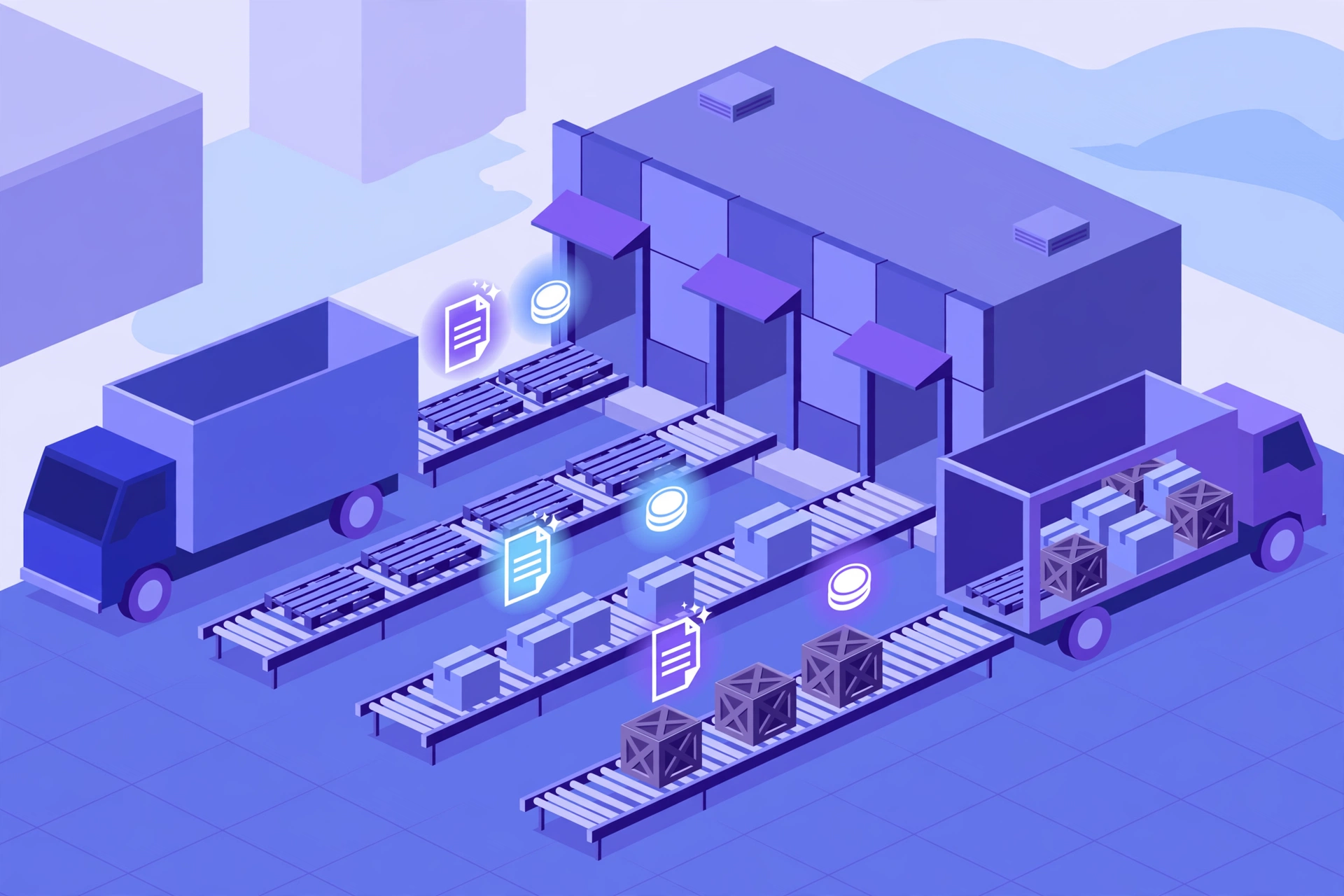
Cross dock work is billable through the 3PL Billing engine — no separate billing system. Two dimensions: per-HU (pallets, cartons and crates each have their own rate) plus per-ticket (one fee per cross dock task). Four billing items are seeded: CROSS-DOCK-HU-PALLET (per pallet), CROSS-DOCK-HU-CARTON (per carton), CROSS-DOCK-HU-CRATE (per crate), CROSS-DOCK-TICKET (per ticket). Rates are set in the Billing Rate Sheet (a Cross Dock group was added to the wizard) and can be overridden per client.
- When you close a shipping task, the system writes the billing events automatically: one line per HU type with quantity > 0 (pallet / carton / crate each get their own line) plus one ticket line — 2–4 lines per ticket. Billing never blocks closing: if the billing write fails it is only logged.
- Before closing, the task detail page shows an estimated cost line (HU count × rate + ticket fee), so the operator sees the bill before confirming.
Break-bulk: split one HU into several destinations#
- On a received or staged HU, use “Break bulk” (overview HU table, or the HU card on the phone) and enter how many units of each line to split out. Each split becomes a child HU with its own code — print a label for it.
- Each child can keep the parent’s destination, go to a different destination, or stay unassigned in the pool. The parent’s remaining quantity is checked automatically — you can never split out more than what is left.
- Once everything is split out, the parent HU is closed as “Split”. If someone scans the parent code afterwards, the system shows the list of child HUs — scan a child label instead.
- HUs already loading, shipped or in exception cannot be split — finish or resolve those first.
Unassigned pool: HUs with no destination yet#
- The overview page has an “Unassigned pool” section (and the phone task list has a pool entry): every onsite HU without a destination, with its dwell time. Warm rows are approaching the limit; red rows are overdue.
- Three ways to clear a pool HU: assign a destination directly, tap “Recommend” and confirm a suggested destination (the system matches open outbound orders), or convert it to putaway when it turns out to be stock after all.
- “Convert to putaway” creates a standard putaway task and takes the HU out of the cross dock flow; nothing is booked into stock until the putaway task is done. If the HU already has a destination, a supervisor must approve the change of plan with a reason.
- HUs sitting in the pool longer than the XD-H2 threshold (default 72 hours) are flagged “Suggest putaway” — a hint only; the system never converts anything on its own.
Merged transfers: pre-bind HUs to a truck and watch completeness#
- When freight for one destination arrives on several inbound trucks and leaves together, stage each HU and pre-bind it to the outbound load (“Bind to load” on the HU card or row). A pre-bound HU shows a “Pre-bound” tag.
- The load page shows a merge panel: how many HUs are expected for this truck, how many have arrived, and which are still missing. The load’s merge policy is set on the same panel or when creating the load.
- With “Wait until complete” (default), the load cannot close while expected HUs are still missing — the close check names the missing SSCCs. With “Partial allowed”, closing short requires a supervisor’s approval and a reason; missing pre-bound HUs are automatically moved to the next load for the same destination, or unbound if there is none.
- Changing a destination is always possible before loading: use “Change destination” on the HU and pick a reason — every change is recorded in the destination history, same as on desktop.
Smarter dwell alerts: cold chain, categories and appointments#
- Cold-chain freight cannot wait as long: in the XD-H1 rule you can set shorter thresholds per temperature zone (for example frozen 8 hours, chilled 12). An HU’s limit follows the strictest item inside it.
- When a staging slot picker opens for a cold-chain HU, only slots in the matching temperature zone are offered — the wrong zone is not even listed.
- If the HU is tied to an outbound appointment, alerts follow the appointment instead: the target time is the appointment departure minus the XD-H3 buffer (default 4 hours). Closing in on the target turns the HU orange; passing it turns it red.
FAQ#
- Q: Where did the old “Cross Dock Load” button go? A: It’s now a load type. Create a load as usual and pick type “Cross dock”.
- Q: The recommendation matched an order to the wrong destination. A: Recommendations match by city + state against your destination master data. Check the destination’s city/state, or just bind a different destination manually.
- Q: Can I change the dwell alert threshold per client? A: Yes — open the Cross Dock rule, switch the shipper selector to that client, and set its own hours.