Serial number collection: direct and palletized receiving
Last updated 2026-10-18
Products with serial tracking on collect serial numbers while receiving: a guided popup with scan support for direct receiving, and a batch modal with paste support for palletized receiving. The backend verifies the count matches and that every serial is unique across the warehouse.
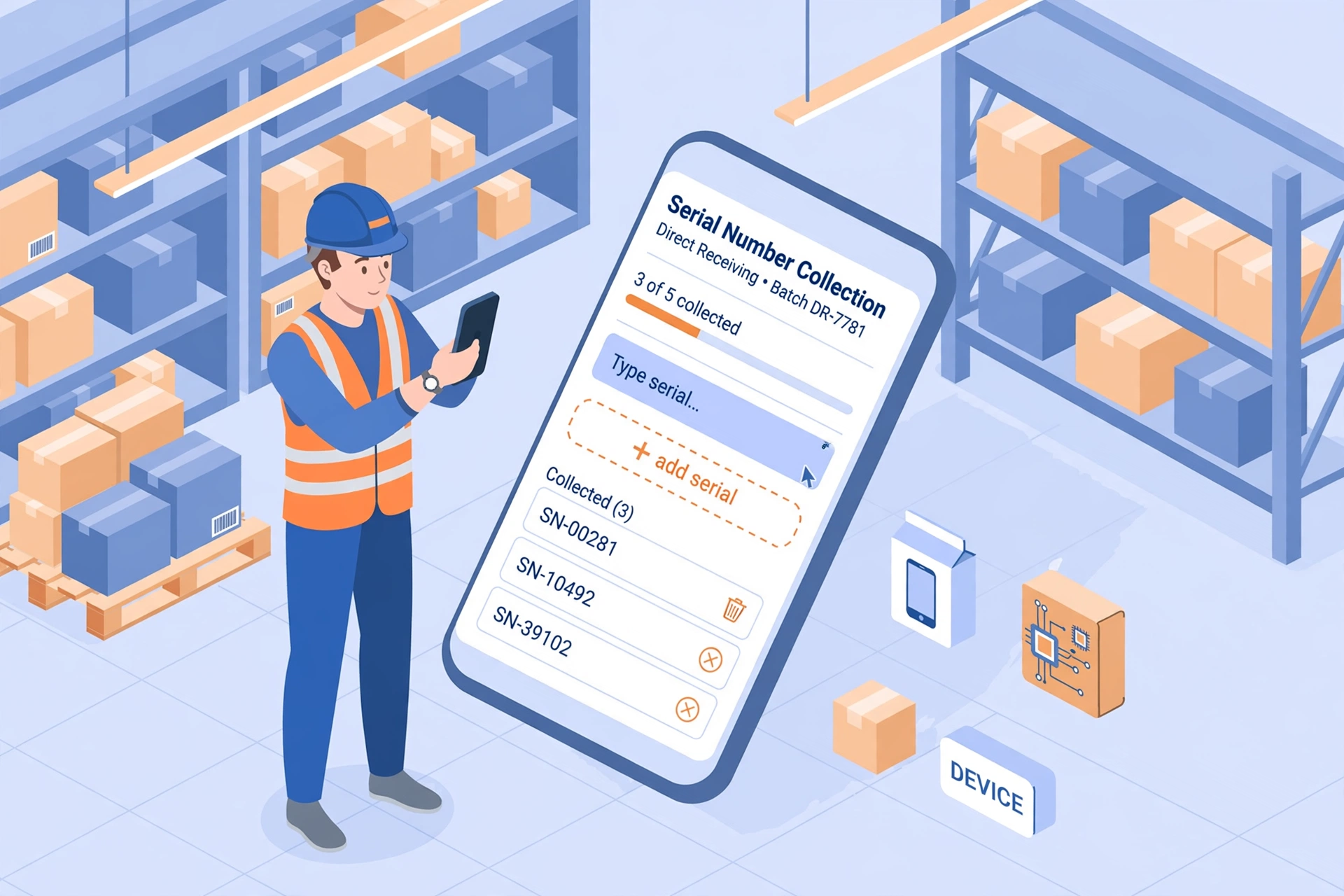
Only tracked products ask for serials#
Serial number collection only kicks in for products with track_serial turned on. Everything else — the receiving screens, the steps, the buttons — stays exactly the same, so untracked products never slow you down.
Direct receiving: collect on the product card#
- Find the product card. If serials are still missing, the button shows a dashed orange "+ Add serials x/y" — x is how many you have collected, y is how many you need.
- Tap the button to open the popup: type a serial or scan it — pressing Enter adds it to the list.
- Scanning a serial that is already in the list shows "This serial number already exists" — it will not be added twice.
- The Confirm button stays grayed out until the count is complete. How many you need = the quantity being received on that line.
- When complete, the button turns solid and shows "✓ Serials x/y". On submit, the serials go to the backend together with the receipt; the backend checks the count matches and that every serial is unique across the warehouse.
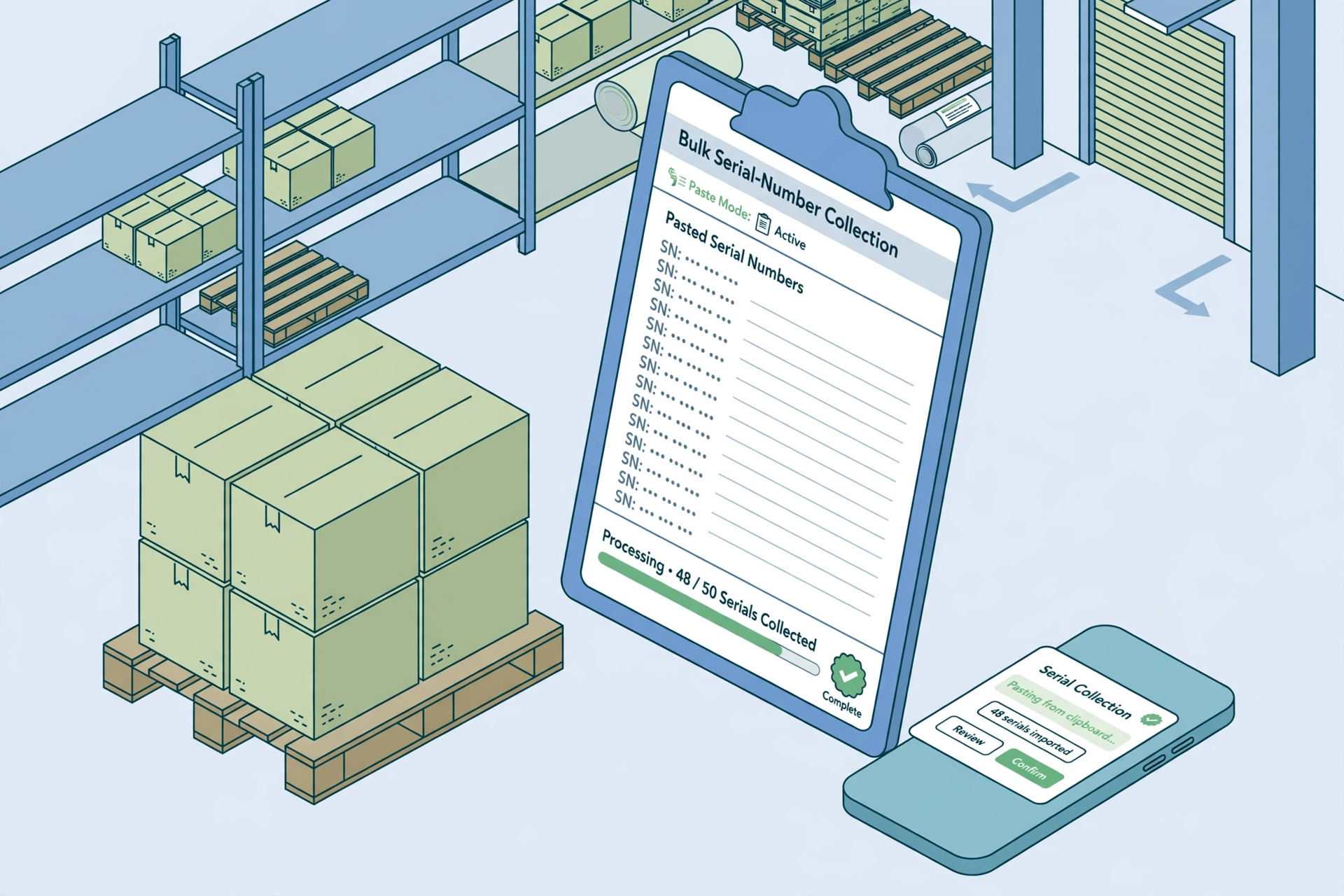
Palletized receiving: batch modal#
Palletized receiving uses the shared SerialCollectModal component, built for speed: copy a whole column of serials from a spreadsheet, paste it in, and the list fills in one go.
- How many you need = quantity per pallet × number of pallets. (Factory-label mode counts labels instead.)
- Bulk paste: copy a column of serials from your spreadsheet and paste — the modal fills the list in one go.
- Like direct receiving, the backend verifies the count matches and every serial is unique across the warehouse when you submit.
Not sure whether a product needs serials? Check the product card: no collect button means no serial tracking — just receive as usual.