Cross Dock on mobile: receive, sort, ship
Last updated 2026-10-21
Tasks are created on desktop; the phone is for doing the work. Scan SSCC codes to receive and sort, watch dwell alerts, and close tasks from the floor.
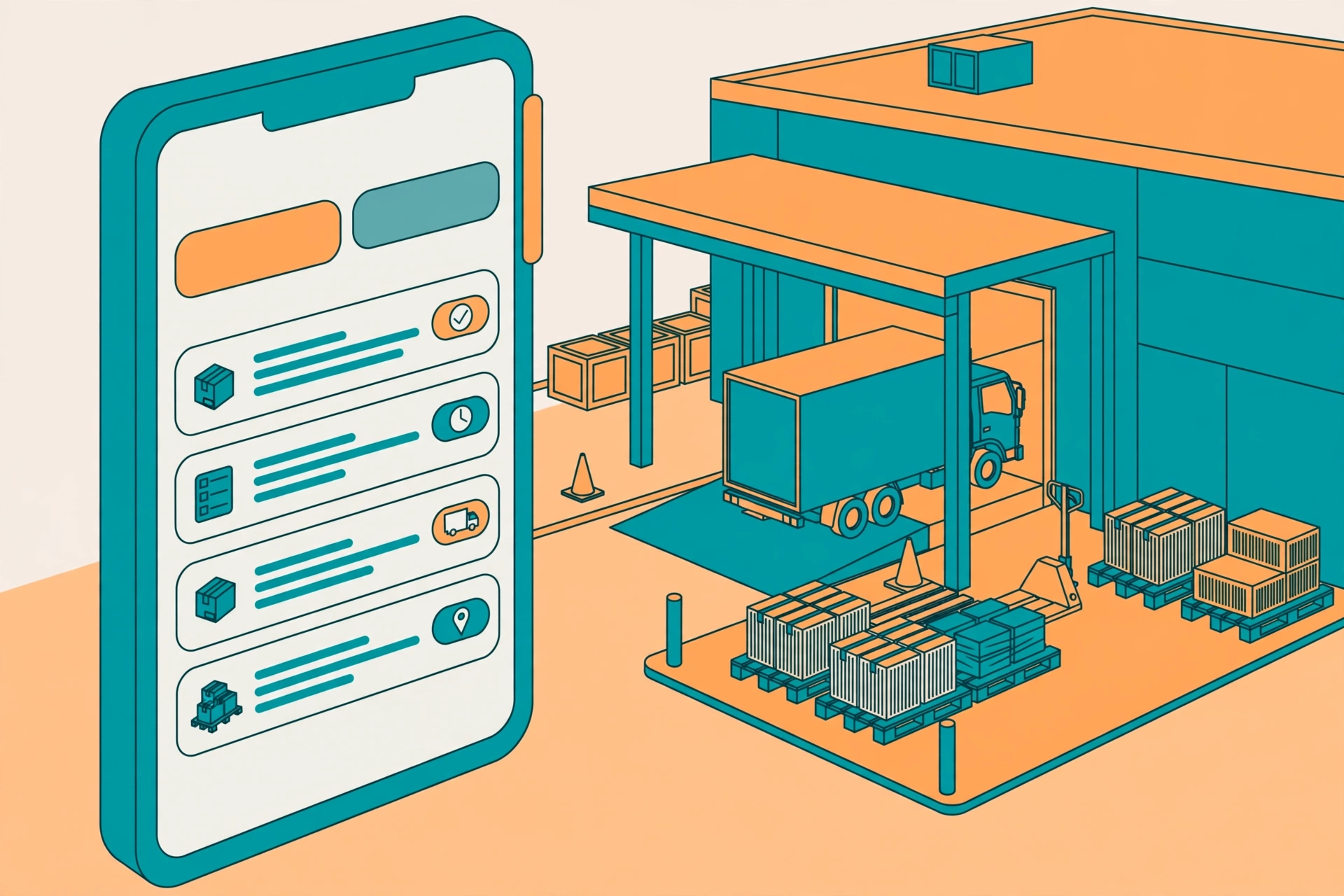
On the phone, open WMS → More → Cross Dock (the truck icon). Tasks are created on the desktop site; the phone is only for executing them: receive, sort, ship.
Task list#
- Two tabs at the top: receiving and shipping.
- Filter by task status; search by task number.
- The list loads 50 tasks at a time — scroll down to load more.
Execute: scan and sort#
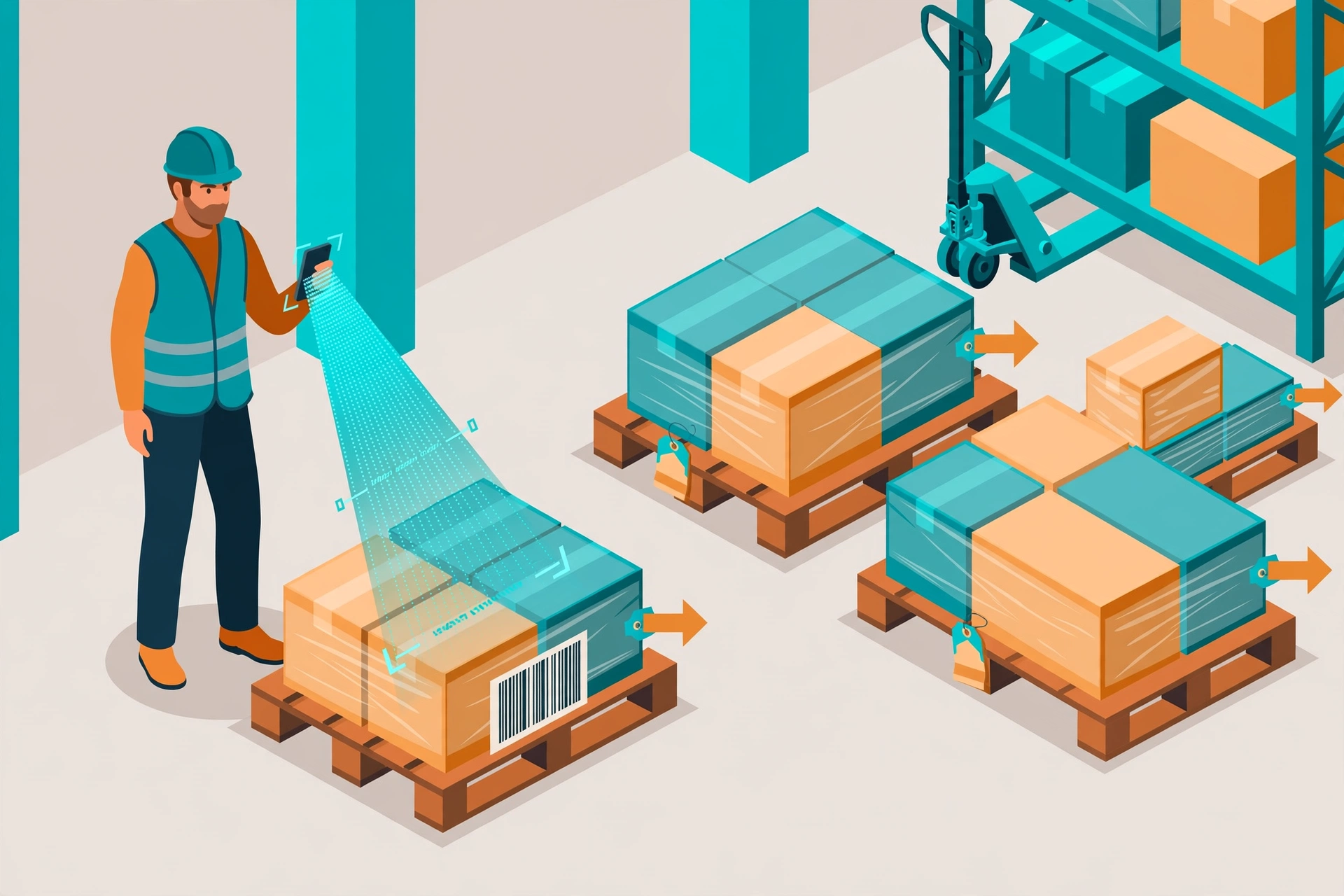
Open a task to reach the execute page. Use the ScanInput scanner to scan the SSCC code on each pallet or carton.
- Receiving: sort what you scan — split it by destination or by order. The screen tells you where each piece goes.
- Shipping: verify each SSCC before it goes on the truck.
- Every scan is confirmed on screen, so a wrong pallet gets caught right away.
Dwell alerts#
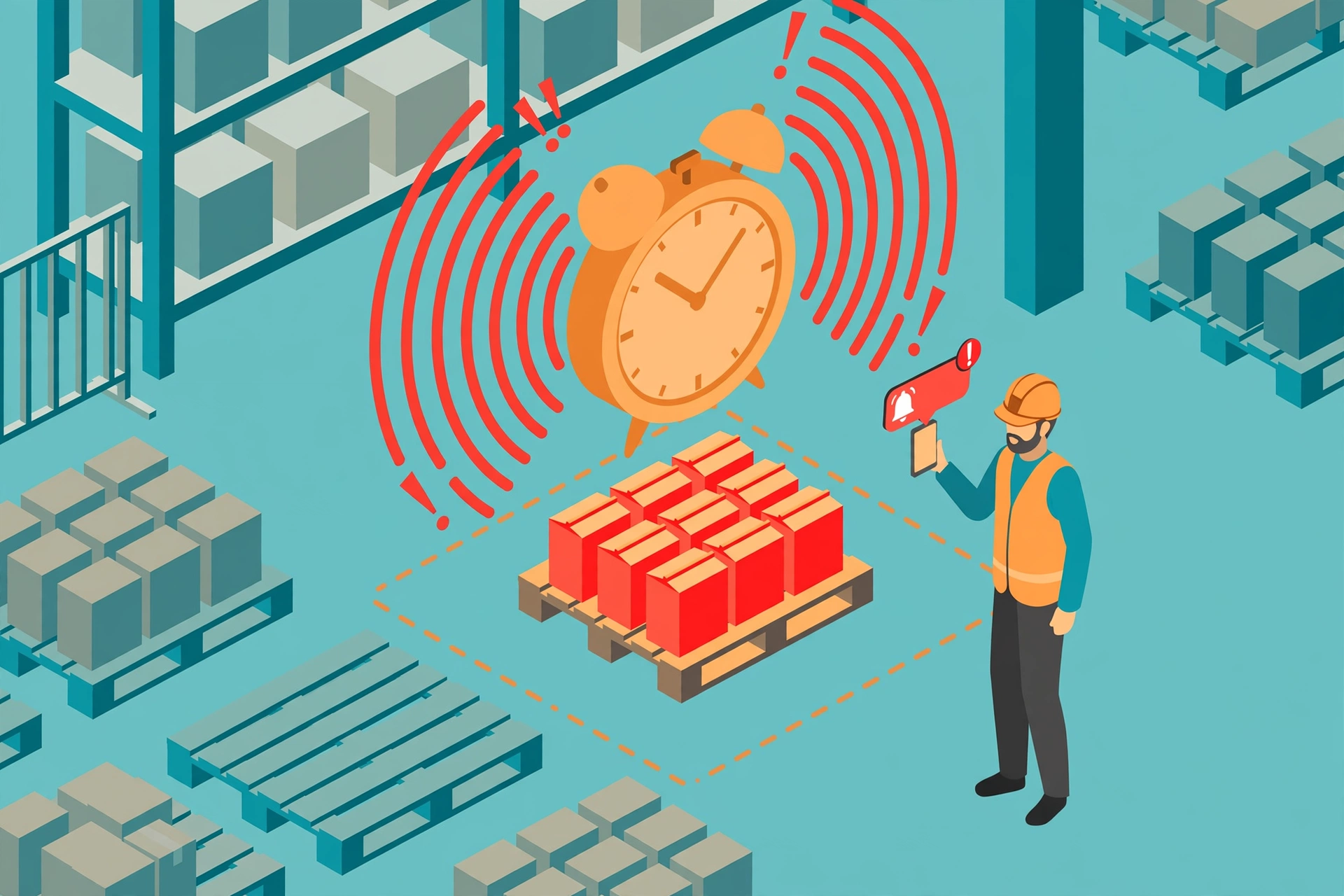
Goods that sit too long cost money and floor space. The list watches every handling unit’s dwell time for you.
- If a handling unit sits longer than the XD-H1 dwell threshold (default 24 hours, configurable), its row turns red.
- Thresholds can differ per client: open the Cross Dock rule, switch the shipper selector to that client, and set its own hours.
New on the execution page: recommendations, change destination, break-bulk, pre-bind, pool#
- After receiving an HU that still has no destination, a recommendation card may pop up: it suggests destinations that open outbound orders are waiting for. Tap “Use this” to bind it, or “Later” to decide in the pool.
- Every HU card has more actions now: “Change destination” (a reason is required), “Break bulk” to split part of the HU into a child HU, and “Bind to load” to pre-bind it to an outbound truck. Pre-bound HUs carry a tag.
- The task list has an “Unassigned pool” entry: all onsite HUs without a destination. From there you can assign a destination, open recommendations, or convert the HU to putaway.
- Scanning a parent HU that was fully split shows its child HUs — scan a child label to continue.
Close a task#
- Closing happens on the task page, not on the work screen: finish scanning, go back to the task page, and tap “Close task” under the main button. The dialog shows how many HUs were received or loaded, so you close with the real count.
- Receiving: if some HUs have not arrived, choose “Some still missing” and pick a reason. The task closes with what was received; the missing HUs stay on the receipt and can be received later.
- Loading: if inbound receiving for this truck is not finished, a warning appears before closing — you can still close after confirming. HUs that were not loaded are counted in the dialog; they stay in the staging area for the next truck and are not on this outbound order.
Cancel a task#
There is no cancel button on the phone. Cancelling is done on the desktop task detail page, and it rolls back the handling unit (HU) states to before the task started — nothing is left half-moved. Only cancel a task that should not exist; for a half-done task, close it on the phone instead of cancelling.
Docklify features used in this article#
- Cross Dock tasks — desktop WMS → Cross Dock: create tasks, follow the kanban, and handle exceptions in Exception Management.
- Phone execution — phone WMS → More → Cross Dock (the truck icon): the receive and load execution pages. Tasks are created on desktop; the phone only executes them.
- Close a task — back on the task home page, tap Close task and declare the actual result; if receiving is short, pick the short-receiving option and a reason. Cancelling is desktop-only.