Slotting: put fast-moving SKUs closest to the shipping dock
One analysis tells you which SKUs sit in the wrong location, recommends where they should go, and creates move tasks in one click — plus a pairing analysis that keeps items often shipped together side by side.
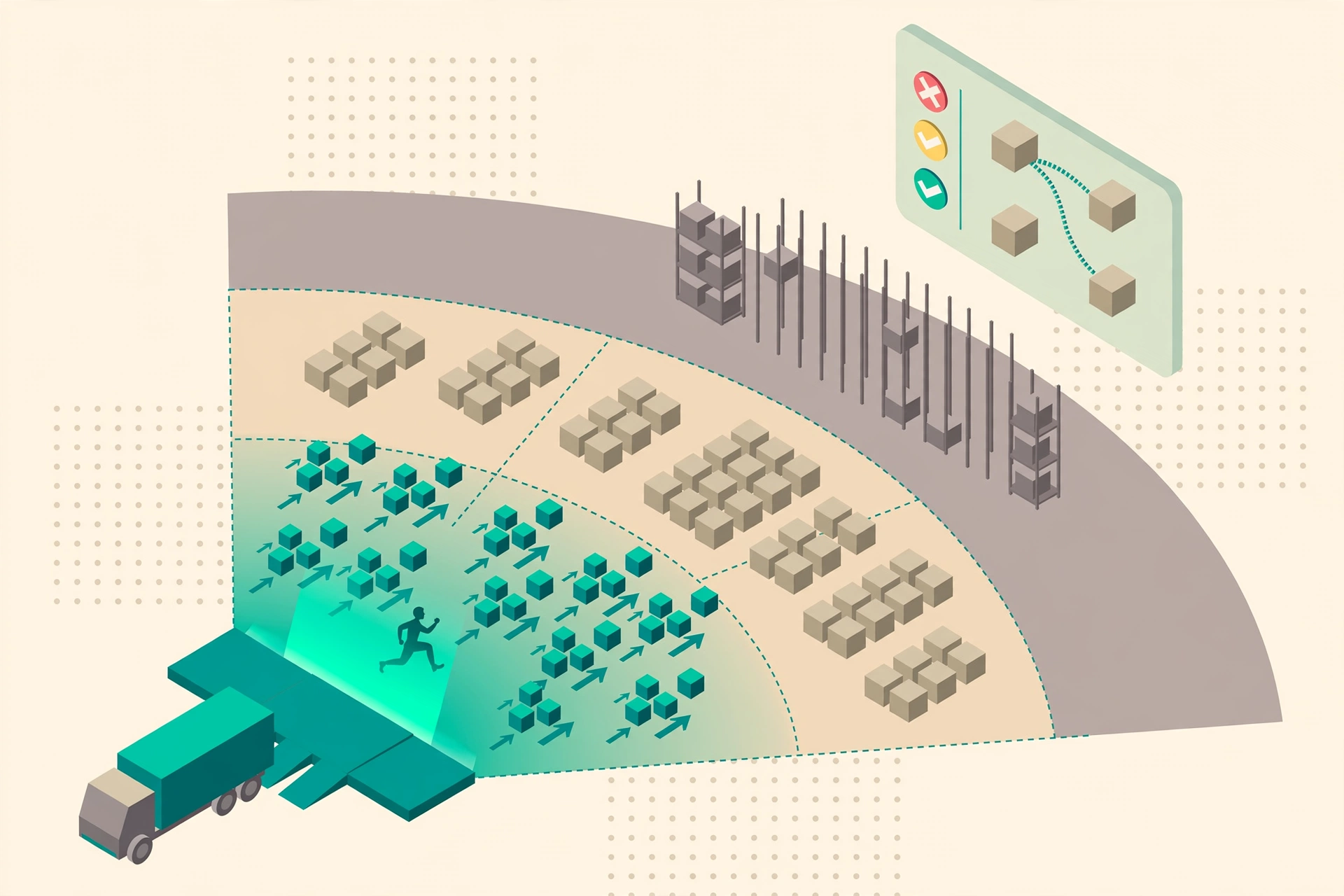
What slotting is (plain language)#
Slotting answers one question: is each SKU stored in the right location? A SKU picked 50 times a day should live steps away from the shipping area; a SKU picked once a month should not occupy that prime spot. When placements drift — new SKUs arrive, seasons change, promotions end — pickers walk longer routes every single day. Slotting finds the misplaced SKUs, suggests better locations, and hands you the move tasks to fix them. It only ever suggests; nothing moves until you confirm.
- Read-only analysis: it never moves inventory by itself, and it never touches orders, tasks or ABC classes.
- Built from your own data: pick history, ABC classes and outbound order lines — no setup beyond one switch.
Module 1: the analysis page — read the red, yellow and green#
Go to WMS → Slotting → Analysis and click "Run analysis". Each SKU gets one verdict based on how often it is picked (its ABC class) crossed with how far its current location is from the shipping area:
- Red — wrong location: fast movers (A) sitting far away, or slow movers (C) occupying prime near spots. Fix these first.
- Yellow — improvable: B items far away, or C items sitting mid-zone. Worth fixing when you have time.
- Green — sensible: fast movers near, slow movers far. Leave them alone.
Use the filters at the top (zone, ABC class, "red only") to narrow the list. The page also shows when the analysis last ran and how many days remain in your re-slotting cycle.
Module 2: pick a better location, then create the move tasks#
Each red or yellow row suggests a target location: the system looks for empty picking locations in the near zone and offers the top 3, already filtered for compliance (temperature zones, allergens and restricted location groups come from your putaway rules — no second rulebook to maintain). Tick the rows you agree with and click "Create move tasks" at the bottom. Each task is a normal move task (MV- number, reason "Slotting optimization") that flows through the usual assign → mobile execution → completion steps.
Module 3: affinity — keep pairs shipped together side by side#
WMS → Slotting → Affinity lists SKU pairs that appear on the same orders unusually often (90-day history, co-occurrence rate of 30% or more). If SKU A and SKU B ship together in 4 out of 10 orders but live in different zones, the picker walks to two places for what is really one pick. The table shows each pair’s current distance: same zone and adjacent is green, same zone but apart is yellow, different zones is red. Tick a pair and it flows into the same move-task creation as Module 2 — the system moves one of them next to the other.
Module 4: periodic re-slotting — set it and get reminded#
Placements drift back out of shape over time, so slotting is a routine, not a one-off. In the warehouse settings there is a Slotting card: a master switch (off by default — warehouses that do not need it feel nothing), the re-slotting interval in days (default 90), and the "near zones" list that defines what counts as close to the shipping area. When the interval passes without a fresh analysis, the analysis page shows a yellow banner: "time to run a slotting review".
Seasonal SKUs get a head start: tag an item as winter, summer or holiday in its product record, and before a season change, filter the analysis page by that tag and re-run just those SKUs.
How each score is calculated (plain language)#
Q: How is "distance tier" decided? A: You list the zones close to the shipping area in warehouse settings ("near zones", e.g. SHIP, PACK). A location in those zones is "near"; neighboring zones on the same floor are "mid"; everything else is "far". If you never configured it, the page estimates: the first third of picking zones by zone name count as near — and it tells you clearly that this is an estimate, so go configure the real list.
Q: What is "velocity"? A: How many units of the SKU were picked in the last 30 days (pick tasks plus outbound order lines). Your existing ABC class turns that number into a band: A = fast, B = medium, C = slow. Slotting reuses the ABC classification your warehouse already maintains — it does not invent its own.
Q: How do velocity and distance combine into red / yellow / green? A: A simple matrix. Fast (A) far away is red — the picker walks the longest route for the most frequent picks. Slow (C) sitting near is also red — it wastes the best spots. A near, B mid, C far are all green. The two in-between combos (A mid, B far, C mid, B near) are yellow.
Q: How is the affinity "co-occurrence rate" calculated? A: For a pair of SKUs (A, B): the number of orders containing both ÷ the smaller of (orders containing A, orders containing B). If that is 30% or more, they are a "high-affinity pair". Only A/B-class SKUs are considered (slow movers are not worth the computation), at most 5,000 orders are sampled, and the whole thing runs as a background batch — the page only reads results.
Q: How is the recommended target location chosen? A: The system looks for empty picking locations in the same warehouse whose distance tier is "near", filters out any that violate your putaway compliance rules, sorts the rest by distance, and hands you the top 3 with a one-line reason each ("empty picking location in the near zone"). You pick one; the system never auto-assigns.
Enabling slotting for a warehouse#
- Warehouse settings → Slotting card → turn on the switch. It is off by default, so warehouses that do not need it are completely unaffected.
- Fill in the near zones (the zones close to your shipping area) — without this the distance tiers are only estimates.
- Set the re-slotting interval (default 90 days) and optionally tag seasonal SKUs (winter / summer / holiday) in their product records.
FAQ#
Q: My analysis shows almost everything green. Is it broken? A: Probably not — if your fast movers already live near the shipping area, green is the honest answer. Check one red or yellow row and confirm the suggested target makes sense to someone who knows the floor.
Q: Can slotting move inventory automatically? A: No. Every move requires you to tick rows and click "Create move tasks". The system never creates move tasks on its own — that is a deliberate safety design for 3PL multi-tenant warehouses.
Q: The recommended location violates a compliance rule I know about. A: The recommendation only filters rules that exist in your putaway rule engine (temperature zones, allergens, restricted location groups). If the rule is not in the engine, add it there — one rulebook serves both putaway and slotting.