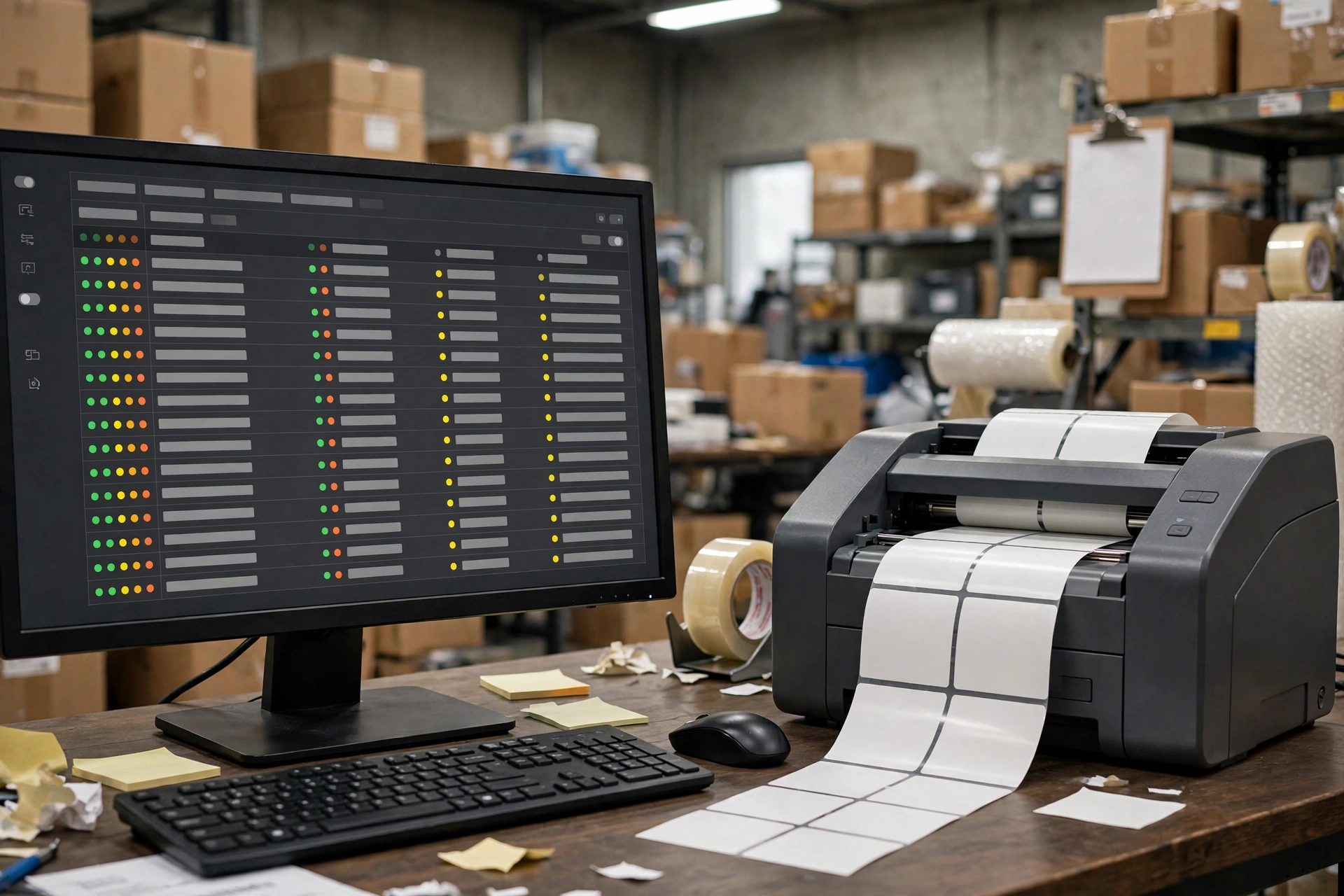
Print center: the shared print queue
Every app prints through here: the job queue (cancel queued, reprint failed), printers and hubs, and where the scheduled-job logs live.
The print center is the shared printing backend for all apps. It lives under the Admin app because printing is company-wide: when a warehouse job (or a phone in someone’s hand) needs a label, the request lands in a queue here, and the Device Hub app on the warehouse computer picks it up and drives the printer. If a label never came out, start here.
The print job queue#
Each row is one print request. Columns show the label type, the related document (order, receipt…), copies, the target printer, who submitted it and when, how long it has been waiting, the status, and — if it failed — the reason.
- Filter the list by status, warehouse, printer, label type or time to find the stuck job.
- A job still waiting in the queue can be cancelled (e.g. a duplicate request).
- A failed job can be reprinted — it goes back into the queue once.
- Any job waiting more than 5 minutes without printing is highlighted — check whether its Hub computer is on and online.
Printers & devices#
The Print devices page lists every printer and Hub: online or offline (judged by the device’s heartbeat signal), how it is connected, which one is the default label printer, and which Hub it belongs to. Hub pairing is managed here too.
Where are the scheduled-job logs?#
Open Admin → Scheduled Jobs. This page shows your tenant’s cron run logs: job name, when it ran, how long it took, success or failure, and a short result summary or error message. Filter by job, status or date — and remember it only shows this tenant’s runs.