Handheld terminals (PDA): the warehouse worker’s phone, done right
A PDA is an Android terminal with a real scan head, a big battery and a body built for drops. This guide compares phone-plus-scanner, ruggedised phones and industrial PDAs, explains the key specs, and walks through a PDA’s working day from charging rack to shift handover.
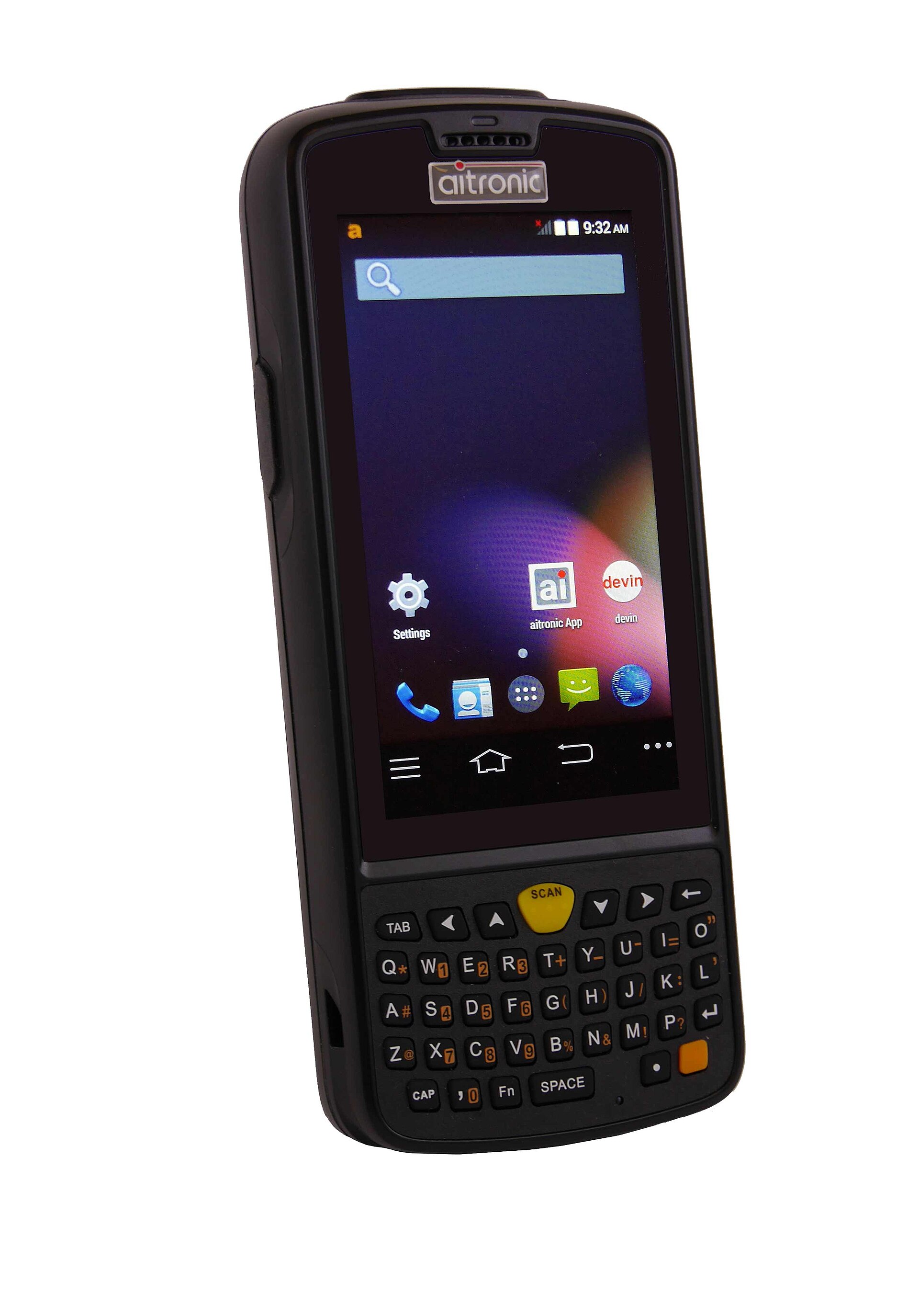
A PDA — in warehouse language, a handheld terminal — looks like a chunky phone, and it does run Android apps. But it is built around one job a phone is bad at: scanning barcodes all day, fast, in gloves, in dust, after being dropped on concrete. The worker picks it up in the morning, receives, puts away, picks and counts with it all shift, and puts it back on the charger at night. It is the worker’s work phone, and everything about it is shaped by that day.
The difference from an ordinary phone comes down to four things. First, a real scan head: a dedicated engine with its own aiming light that reads a code the instant you pull the trigger, instead of a camera hunting for focus. Second, the body: reinforced corners, a sealed shell and a drop rating, because it will be dropped. Third, the battery: big, and on most models swappable mid-shift without shutting down. Fourth, the screen and keys: usable with gloves and in bright dock light, with a physical scan trigger you can find without looking.
- Scan head: trigger scan in a fraction of a second, reads worn and small codes a phone camera struggles with.
- Drop-proof body: rated drops of 1.5 m and more onto concrete, sealed against dust and splashes (IP65 and up).
- Big, often swappable battery: 4,000–5,000 mAh that covers a full shift of scanning, with a spare swap instead of a dead device.
- Glove-friendly use: a touchscreen that responds through work gloves, plus physical keys and a scan trigger on many models.
Three routes to a scanning device#
| Route | Total outlay | Scan speed | Durability | Fits which scale |
|---|---|---|---|---|
| Ordinary phone + Bluetooth scanner | $100–400 in total | Good: the gun does the scanning; two devices to keep paired and charged | As durable as the phone — the weak link | Very small teams, light scanning, tight budgets |
| Consumer phone in an industrial case | Phone price + case; scanning still by camera unless a sled scanner is added | Slow to medium: camera focus decides the pace | Case helps with drops, but the phone inside was not built for warehouse shifts | A stopgap: few devices, moderate volume, while the operation grows |
| Industrial PDA | $200–1,500: entry models from makers such as Urovo and Chainway run $200–500; Zebra and Honeywell mid-to-high models run $600–1,500 | Fastest: dedicated scan head and trigger, built for thousands of scans a shift | Highest: drop-rated, sealed, swappable battery, repairable parts | Warehouses where scanning is the job all day, every day |
There is no wrong route here, only a wrong match. A two-person operation shipping thirty orders a day will feel no pain with phones and a Bluetooth gun. The same setup in a 3PL running thousands of scans per picker per shift falls apart in a month — cameras slow down, phones crack, pairing drops. Buy for the scanning volume you actually have, and re-check the choice when the volume doubles.
Key specs, in plain words#
Scan engine: near or long range
The scan engine is the heart of the PDA. A standard-range engine reads from a few centimetres to about half a metre — the right choice for receiving, putaway, picking and counting, where the label is in front of you. A long-range engine reads labels several metres away, up to and beyond 10 metres on high racks, and adds real money to the price. Most fleets buy standard range for everyone and keep one or two long-range units for the high-bay work. Also confirm the engine reads 2D codes, not just 1D barcodes.
- Screen: 4 to 5.5 inches is the working range. Bigger reads easier but makes the device heavier and more one-hand-unfriendly; smaller is lighter but makes lists and buttons cramped.
- Battery: 4,000–5,000 mAh is the normal band. Swappable beats bigger: a fresh battery at the mid-shift break ends the day better than one huge battery that fades by month six.
- Drop and sealing: look for 1.5 m drops to concrete and IP65 or better. Cold stores and yards push you toward higher ratings, not lower.
- Android version and updates: the warehouse apps you run live in a browser or as Android apps, so an ancient Android version becomes a compatibility problem. Ask how long the maker ships security updates for that model.
- Keypad or full touch: full-touch models look modern and suit glove-touch screens; models with a physical keypad win when numbers are typed all day or hands are wet and gloved. See the warning below.

One PDA’s working day#
- Night and morning: the fleet sits in a charging rack or cradle row, every slot filled, every device charging. Whoever opens up can see at a glance whether the fleet is complete.
- Start of shift: a worker takes a device and signs it out — on paper in small sites, in a system in bigger ones. The device number is now tied to a name for the shift.
- During the shift: receiving, putaway, picking, counting — every task on the device, every scan through its head. A battery swap or a spare device covers the rare mid-shift fade.
- End of shift: the device goes back to its slot, the return is noted, and any damage or fault is reported the same day — not discovered by the next shift.
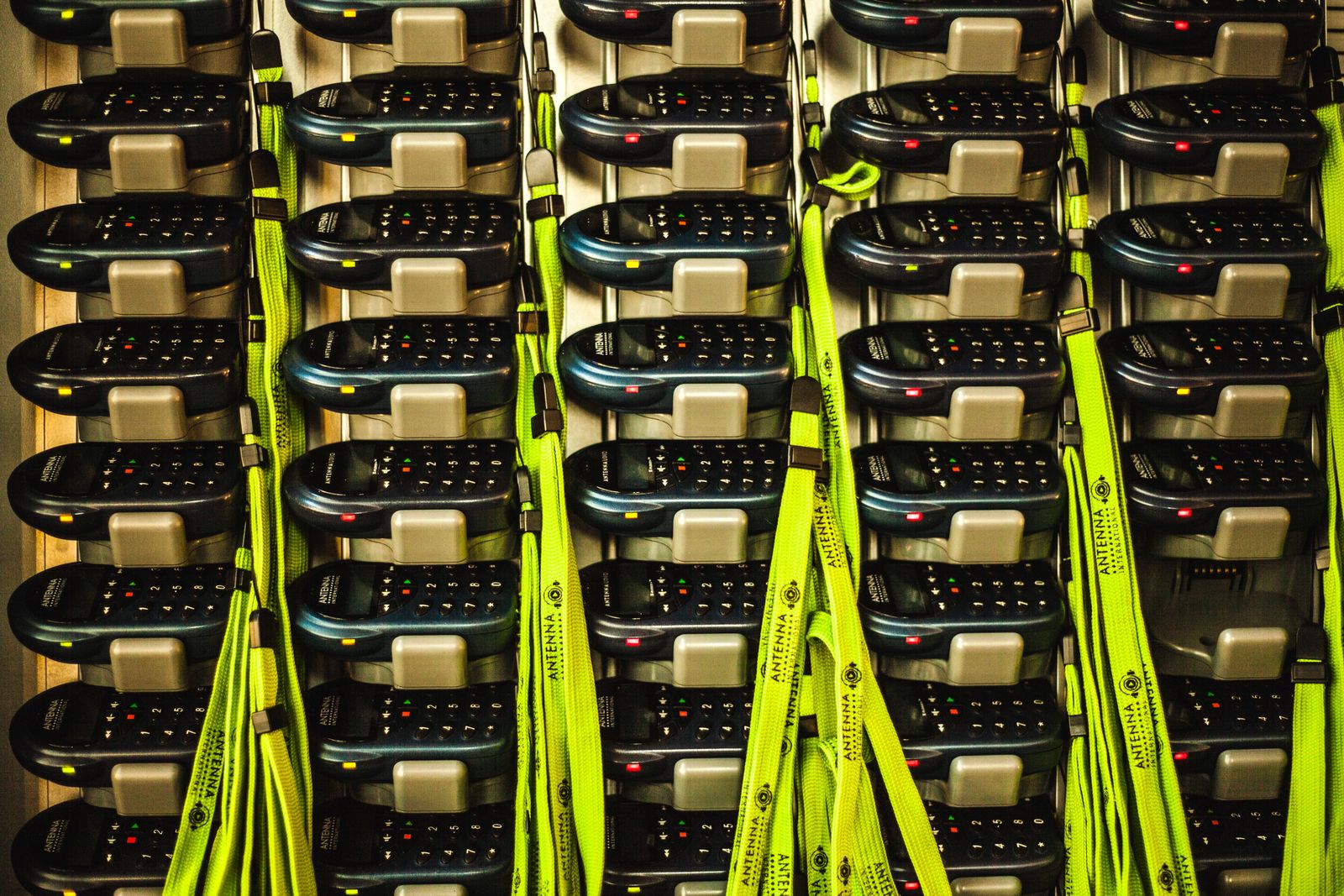
Central charging and sign-out sound like housekeeping, but they decide whether the fleet works. Charging scattered across benches means flat devices at shift start and a daily hunt for cables. A single rack means: complete fleet, full batteries, and a known home for every unit. Sign-out matters for the same reason — when a screen cracks, you want to know who had the device and what happened, while it is still the same day. It also protects the careful worker: the device they handed back in good shape is on record.
The sign-out side can live in the same place as the rest of your equipment records. In Docklify, a PDA itself can be registered in the Assets ledger (SaaS → Assets) with its number and status, and its check-out and inspection history kept with the device. So the fleet list, the device’s condition and who is using the equipment are not three separate notebooks.
Working on the PDA: tasks lead, you follow#

Docklify’s WMS mobile side is built to be used on a PDA like this: open m.docklify.com in the browser, log in, and you are in — there is no separate heavy client to install and maintain on every device. Work arrives as a task list: take a task from the list, start it with the same Start task button every task type uses, do the work, and finish with Close task. The same two buttons on every task means a worker who learns receiving already knows how counting starts and ends.
Inside a task, the steps are guided in order instead of leaving the worker on one big form. For a move or pick, for example, you first do Pick from location — scan the location you are taking from — and then Pick to, the place or tote the goods go to. Each step asks for the scan it needs and checks the answer before the next step opens. A new hire following the steps in order does the job the same way as the person who has done it for a year.
The scan head earns its keep in that flow. When you scan a location code with the PDA, or scan a pallet’s LPN (its licence-plate number), Docklify brings up the products on that location or pallet automatically — the next choice is filtered by what you just scanned, instead of showing the whole warehouse catalogue. Scan the pallet, and you pick from what is on that pallet. It is a small thing that removes a long list of “right product, wrong pallet” mistakes.
Two traps before you buy#
Keypad or full touch is the second choice to make on purpose, not by fashion. Full-touch PDAs are fine where the work is mostly scanning and tapping big buttons, and glove-touch screens have become genuinely usable. But if your people type quantities and codes all day, work with wet hands, or wear thick gloves in a cold store, physical keys can be pressed without looking and without a screen responding to every drip. Many warehouses run both: touch models for general work, keypad models for the cold store and the loading dock.
Finally, keep the split of work in mind when you equip a site. The PDA covers the mobile work — walking, scanning, counting on the floor. Packing and shipping, where the worker stands at a bench with a printer and a scale, are desk work: in Docklify that part runs at the Packing Station on the desktop (SaaS → WMS → Packing Station), scanning the parcel or order barcode to pull up the order. Equipping the bench with a desktop and equipping the floor with PDAs is not duplication; it is each tool where it belongs.
How many to buy: count heads, then add spares
Count the people who scan at the same time at your busiest hour — that is your working fleet. Then add spares: one or two extra units, or roughly one spare for every eight to ten working devices. A PDA in repair or forgotten on a charger should never leave a picker standing idle, and the spare fleet is also what lets you send a unit away for repair without shrinking the team. Buy the charging rack for the full count, spares included, on day one.
Docklify features used in this article#
- WMS on mobile / PDA — open m.docklify.com in the browser and log in, no heavy client to install; take tasks from the task list (m.docklify.com → WMS)
- Unified task start and finish — every task uses Start task to begin and Close task to finish (WMS mobile task list)
- Step-guided task execution — Pick from location first, then Pick to, scanning as each step asks (WMS mobile tasks)
- Scan location code or pallet LPN to bring up its products automatically — the next pick is filtered by the scan (WMS mobile tasks)
- Assets ledger — register each PDA with number and status, and keep its check-out and inspection records (SaaS → Assets)
- Packing Station — packing and shipping on the desktop, scanning the parcel or order barcode to pull up the order (SaaS → WMS → Packing Station)