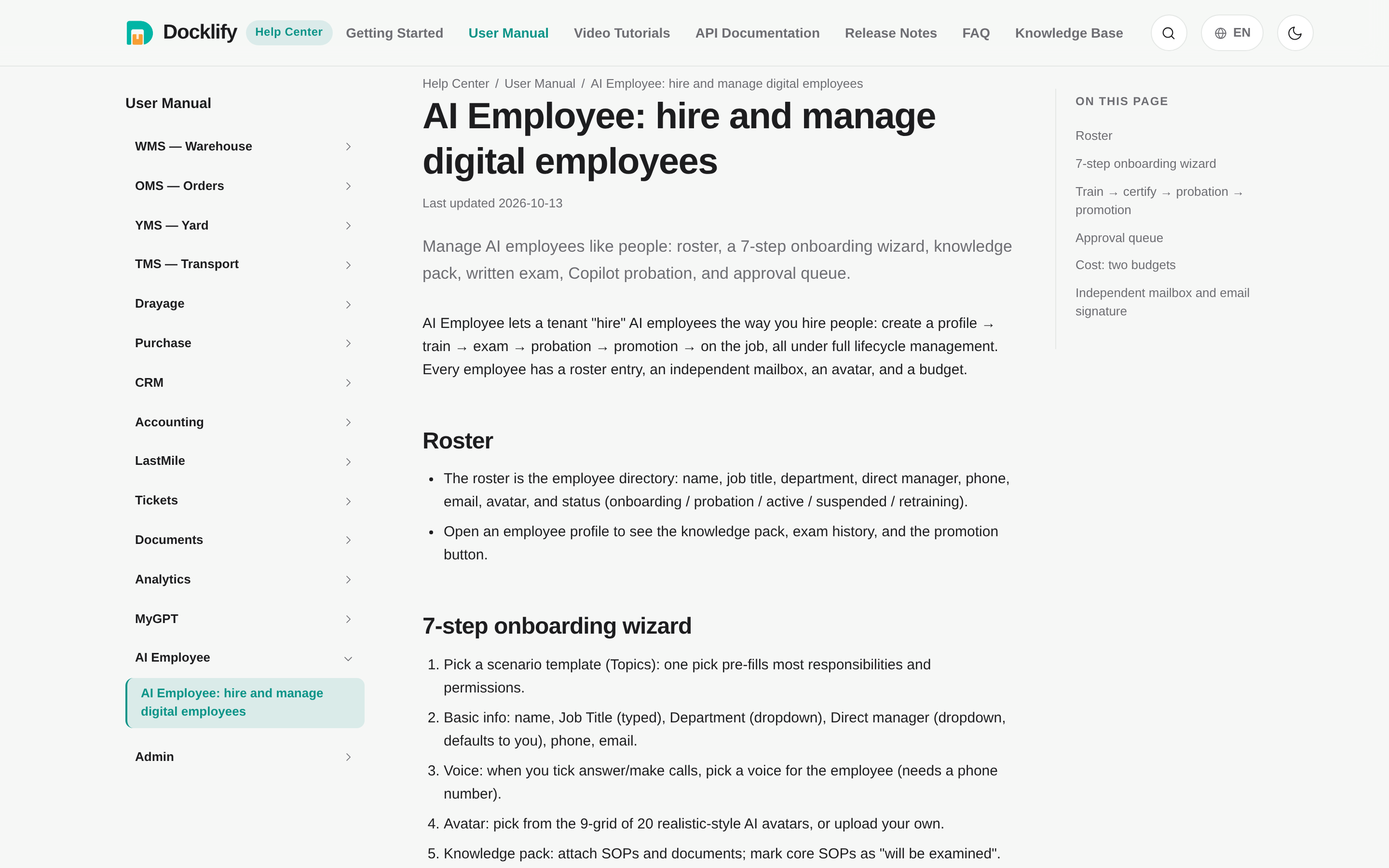
Agent Crew: hire and manage digital employees
Manage AI employees like people: roster, a 7-step onboarding wizard, knowledge pack, written exam, Copilot probation, and approval queue.
Agent Crew lets a tenant "hire" AI employees the way you hire people: create a profile → train → exam → probation → promotion → on the job, all under full lifecycle management. Every employee has a roster entry, an independent mailbox, an avatar, and a budget.
Roster#
- The roster is the employee directory: name, job title, department, direct manager, phone, email, avatar, and status (onboarding / probation / active / suspended / retraining).
- Open an employee profile to see the knowledge pack, exam history, and the promotion button.
7-step onboarding wizard#
- Pick a scenario template (Topics): one pick pre-fills most responsibilities and permissions.
- Basic info: name, Job Title (typed), Department (dropdown), Direct manager (dropdown, defaults to you), phone, email.
- Voice: when you tick answer/make calls, pick a voice for the employee (needs a phone number).
- Avatar: pick from the 9-grid of 20 realistic-style AI avatars, or upload your own.
- Knowledge pack: attach SOPs and documents; mark core SOPs as "will be examined".
- Written exam: questions are auto-generated from the knowledge pack (default 20 questions, 80 pass line), timed, auto-graded; retakes allowed within the limit.
- Probation settings + manager confirmation: set the probation period, then the manager confirms onboarding and the employee goes live in Copilot mode.
Train → certify → probation → promotion#
- Certification: pass the written exam on the knowledge pack before the employee can act.
- Probation runs in Copilot mode: reads execute directly; every write goes to the approval queue for the direct manager to batch-approve.
- Trial run: a manager sends a test task — the employee first drafts a proposal (proposed), and only executes after approval (approved → executed); rejections are logged too.
- Promotion: once targets are met (or the manager approves manually), promote the employee to Autopilot — whitelisted actions run without approval; high-risk actions always need confirmation.
Approval queue#
The approval queue (task supervision desk) is where managers batch-review everything Copilot employees want to write: approve, reject, or send back. Every decision is audited with the employee, the task, and the outcome.
Performance board#
Open the roster and tap "📊 Performance board" at the top to see how your AI employees are doing this month — all figures use the current calendar month.
- Overview cards: employees on staff, how many were active this month, tasks this month (plus how many are in progress), completion rate, average handling time, approvals waiting for you, and tokens used against the combined monthly budget.
- Employee comparison table: per employee — tasks, completion rate, average handling time, approval rate (with decided / proposed counts), failures, monthly token budget, and last active time. Tap a row to open that employee’s profile for task and action history.
- Trend: the last 8 weeks of task volume and completion rate as bars, with a per-role table below — handy for spotting which role is overloaded or slipping.
- How the numbers work: completion rate = completed ÷ (completed + failed + cancelled); average handling time only counts completed tasks; approval rate counts proposals decided this month. Token use is currently totaled company-wide (shown on the overview card); the table shows each employee’s monthly budget.
Cost: two budgets#
- AI Token budget (monthly): thinking costs tokens; when the budget runs out the employee stops and the manager is notified.
- Phone minutes budget: calls consume a minutes package; thinking inside a call still costs AI Tokens. The two are metered and sold separately.
Independent mailbox and email signature#
- Each employee gets an independent mailbox: email is work — an incoming email becomes a task, the employee executes per SOP and replies with the result.
- Email signature is required (a default template is provided): it is attached to every auto-reply and carries the "digital employee" disclosure — tenants may reword it, never delete it.
Org chart: AI employees sit under their supervisor#
People → Org Chart now mixes humans and AI: each employee node shows headcount plus its AI agents (“3 people + 2 AI”). Clicking an AI agent opens its profile page — the agent’s ontology: Role (its job position), Topics (the scenarios it handles), Tasks, Knowledge pack, Exam records, and Action history.