Task Monitor: the shift lead’s dashboard
Every WMS task on one dashboard: five KPI cards, Realtime / Trend / People views, and overdue tasks flagged red. The shift lead’s morning routine: overdue first, then in-progress.
Task Monitor is the dashboard for every WMS task: what is pending, what is running, what finished today, and what is overdue — plus who is doing what. Open WMS → Task Monitor. It is the page a shift lead keeps open all morning.
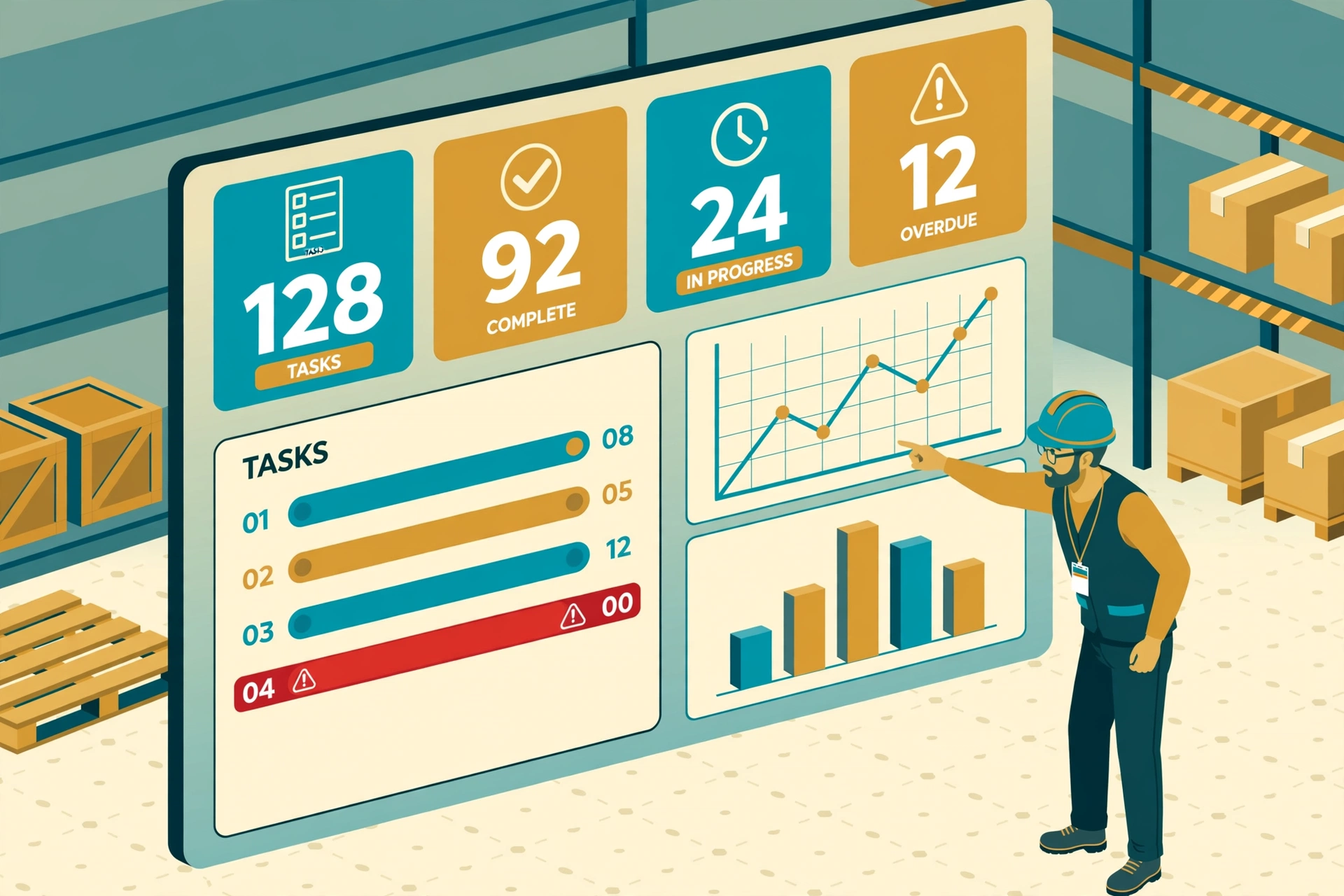
Five KPI cards at the top#
- Pending: tasks waiting to start.
- In Progress : tasks being worked on right now.
- Completed Today : finished since midnight.
- Overdue: past their due date and not finished — red when above zero.
- Exceptions: tasks flagged with an exception reason (stuck, damaged goods, missing label…).
Each card also shows yesterday’s number underneath, so you can tell at a glance whether today is better or worse than yesterday.
Three views: Realtime / Trend / People#
Realtime
The live task list: task number, type tag, status, assignee, progress, how long it has been idle, and the exception reason if any. Click a task number to open its detail page. Overdue tasks are impossible to miss — red task number, red status tag, and a red "!" mark. A task idle for 2 hours or more is also shown red.
Chasing where a task came from? In Task Query (WMS → Tasks) the Source Documents column shows the source type and number — the number is a link straight to that outbound order, inbound receipt or load. The task detail page does the same: the order number on pick/pack tasks and the receipt number on receive tasks are clickable, so you never have to copy a number and go searching.
Trend
Charts over the last days: completed count vs average duration, completions by task type, on-time rate, and status distribution. Use it to answer "are we getting faster or slower this week?" and "which task type keeps missing its SLA?".
People
One row per person: active tasks in hand, tasks done this week, average duration, and exception count. Handy when the board shows a red overdue and you need to decide who can take it over.
Filters: warehouse / task type / date range#
Top of the page: pick a warehouse, a task type (or All), and a date range (last 7 / 14 / 30 days). The KPI cards, charts, and lists all follow the filters. Running two warehouses? Switch between them instead of scrolling through a mixed list.
The shift lead’s morning routine#
- Step 1 — Overdue first: glance at the red Overdue card. Zero? Good morning. Above zero? Click through and see which tasks and who owns them.
- Step 2 — In-progress and idle: in the Realtime view, look for red rows (idle 2h+ or overdue) and tasks stuck on one step.
- Step 3 — Drill in: click the task number to open its detail and see exactly which step it is stuck on, then reassign or go to the floor.