Move task: relocate inventory between locations
Create a task on desktop and assign it, or do the move on the spot from your phone — task creation, scan-based Pick/Drop, pre-printed LPN labels and FAQs, all in one place.
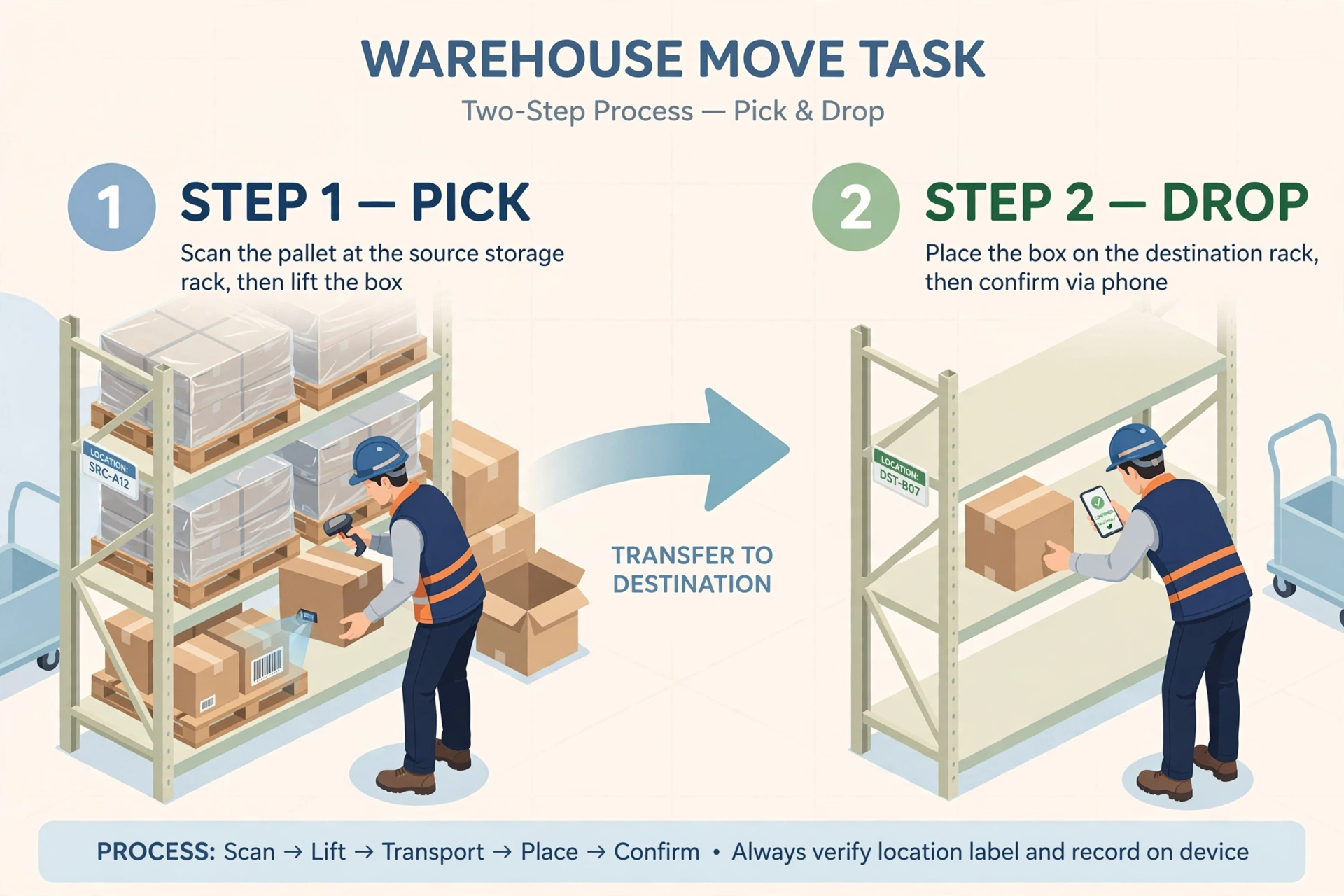
A move task is the official way to relocate stock inside the warehouse: take a quantity of a product from one location and put it on another. Typical cases: replenishing a picking slot from a storage location, quarantining damaged goods, or consolidating pallets to free up space. Every move goes through a task so the ledger always adds up.
Two ways: desktop task or phone on the spot#
Planned moves: create the task on desktop and assign it to someone, who executes it on their phone. When you create the task, the system locks the from-location stock so nobody else can take it meanwhile. On-the-spot moves: do it directly on your phone when you see the need — after you finish, the system fills in a task record automatically.
On desktop: create the move task#
- Go to the task list → Create Move Task.
- Move From: type the location code and hit Enter. The system detects the location type — a picking location holds products directly (no pallets): choose the product, enter the quantity and pick the unit (UOM). A storage location holds products on pallets: choose the pallet first, then the product, quantity and unit.
- Move To: type the destination location and hit Enter. For a picking location you are done. For a storage location you need a pallet: pick the pallet already there, or scan a pre-printed LPN label as a new pallet — scanning binds that LPN to the location.
- From and To cannot be the same location/pallet — the system blocks it with an error. Moving something to itself makes no sense.
- Choose a move reason (Reason Code): replenishment, damage quarantine, consolidation, and so on.
- Assign the task to the person who will do it (Assignee).
- Submit — the task is created and the from-location stock is locked.
On your phone: execute the task (Pick → Drop)#
- Open the task list on your phone, find the move task, and open its Summary first: where to pick, what to pick, how much, and where to drop.
- Tap Start.
- PICK — at the from location, scan in order: location (always required) → pallet (storage locations only) → product. Enter the actual quantity you picked (it may be less than the task quantity — actual wins), then tap Pick.
- DROP — at the destination, scan: location (always required) → pallet or pre-printed LPN (storage locations only; scanning a new LPN binds it to the location). Tap Drop. The system writes the ledger: from −qty, to +qty.
- Back on the task home screen, tap Close — the task is complete.
Do it directly on your phone (on-the-spot move)#
- On your phone go to WMS → More → Move Task — this is the on-the-spot move page (no task to claim first).
- Step 1 Pick: scan the location → (storage) scan the pallet → scan the product → enter the quantity and pick the unit → tap Next. This creates an in_progress move task in the background — if you get interrupted and leave, the task waits for you in the task list.
- Step 2 Drop: scan the destination location → (storage) scan the pallet or a pre-printed LPN → tap Drop. The system writes the ledger (from −qty, to +qty) and the task completes.
- Resume later: open the unfinished move task from the task list and it jumps straight into Step 2 — the drop location is free choice. A task untouched for over 24h is flagged “incomplete”.
Pre-printed LPN labels: how to use them#
Dropping onto a storage location that has no pallet yet needs a new pallet identity — an LPN (License Plate Number), the pallet’s ID card. Phone web pages cannot reach Bluetooth printers, so we pre-print: batch-print a stack of blank LPN labels on desktop, carry them in your pocket, and when you need one, stick it on and scan it — the LPN is then bound to the location.
- On desktop: WMS → Labels (pre-print LPN) → enter how many labels you need (e.g. 50) → the system generates unique LPNs → print from the browser.
- Fresh labels are "unused"; after the first scan on site they become "used".
- To use one: scan the location first, then the LPN — binding done.
FAQ#
- Why was I blocked when From and To were the same? — Usually intentional: check whether you picked the wrong destination. One exception: moving between two different pallets on the same location (pallet consolidation) is allowed; only identical location + identical pallet (or neither uses a pallet) is blocked as “no move needed”.
- What if the actual quantity is less than the task quantity? — Enter the actual number; the ledger follows the actual. Any remaining locked quantity is released automatically when the task completes — no manual cleanup needed.
- Can I move only part of it? — Yes. Just enter the actual quantity at Pick time.
- Can I cancel a wrongly created task? — Tasks that have not started (created/assigned) can be cancelled by the creator or a warehouse admin; the locked stock is released on cancellation. A task already in progress cannot be cancelled.
- After a desktop task is created, can others still touch that stock? — No. The lock prevents two people from grabbing the same stock; it releases automatically when the task completes or is cancelled.
- A scan got rejected as a mismatch — now what? — The scanned location/pallet/product must match the task exactly. Double-check you are at the right location with the right pallet and scan again.
Move modes: by product or by pallet#
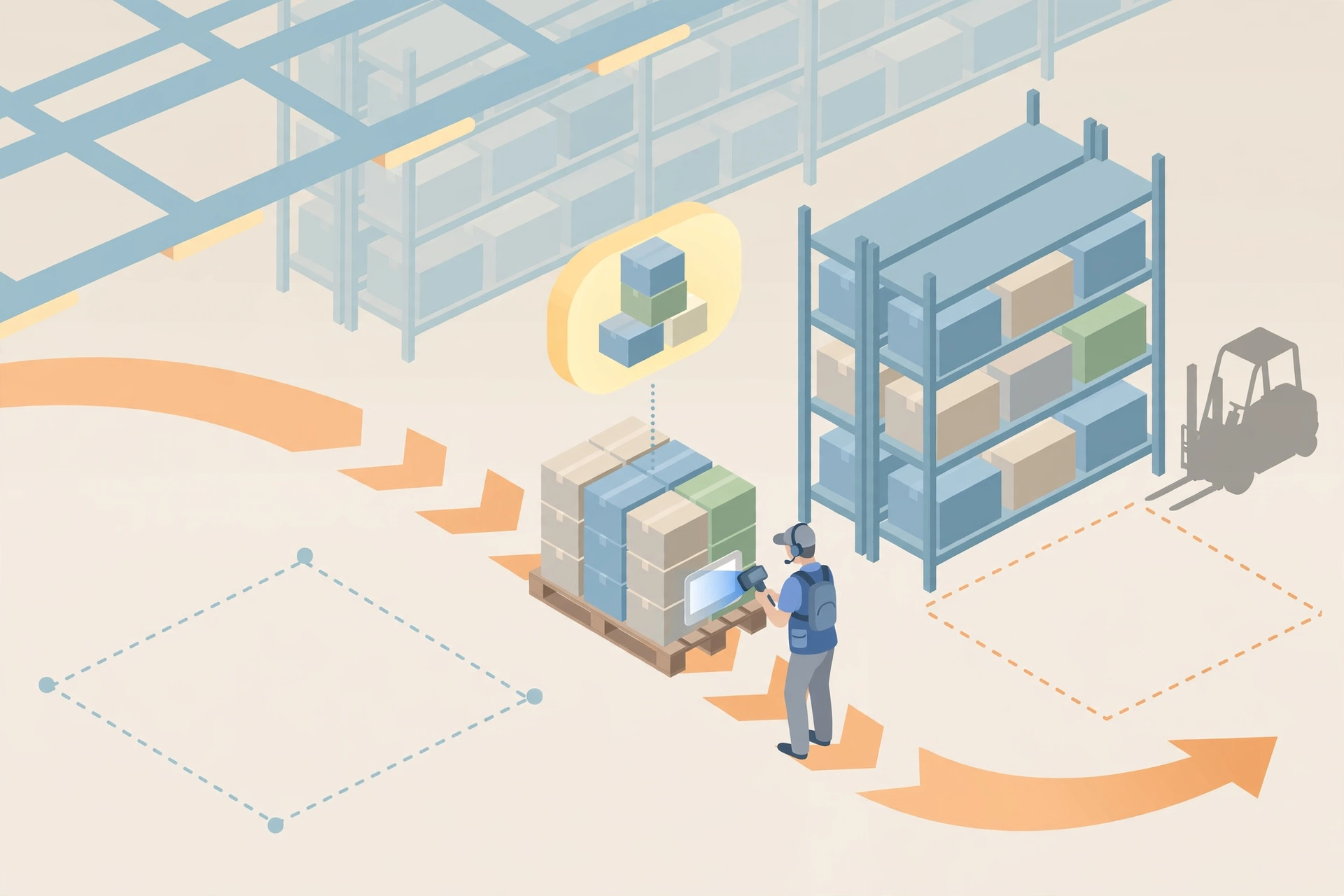
A move task runs in one of two modes (the move_mode field). ‘Product’ mode moves loose product: take a quantity of a product from one location and put it on another. ‘Pallet’ mode moves the whole pallet: the pallet keeps its identity, only the location changes — you scan the pallet, not each product.
Quick Put Away: scan pallet, get suggestions#
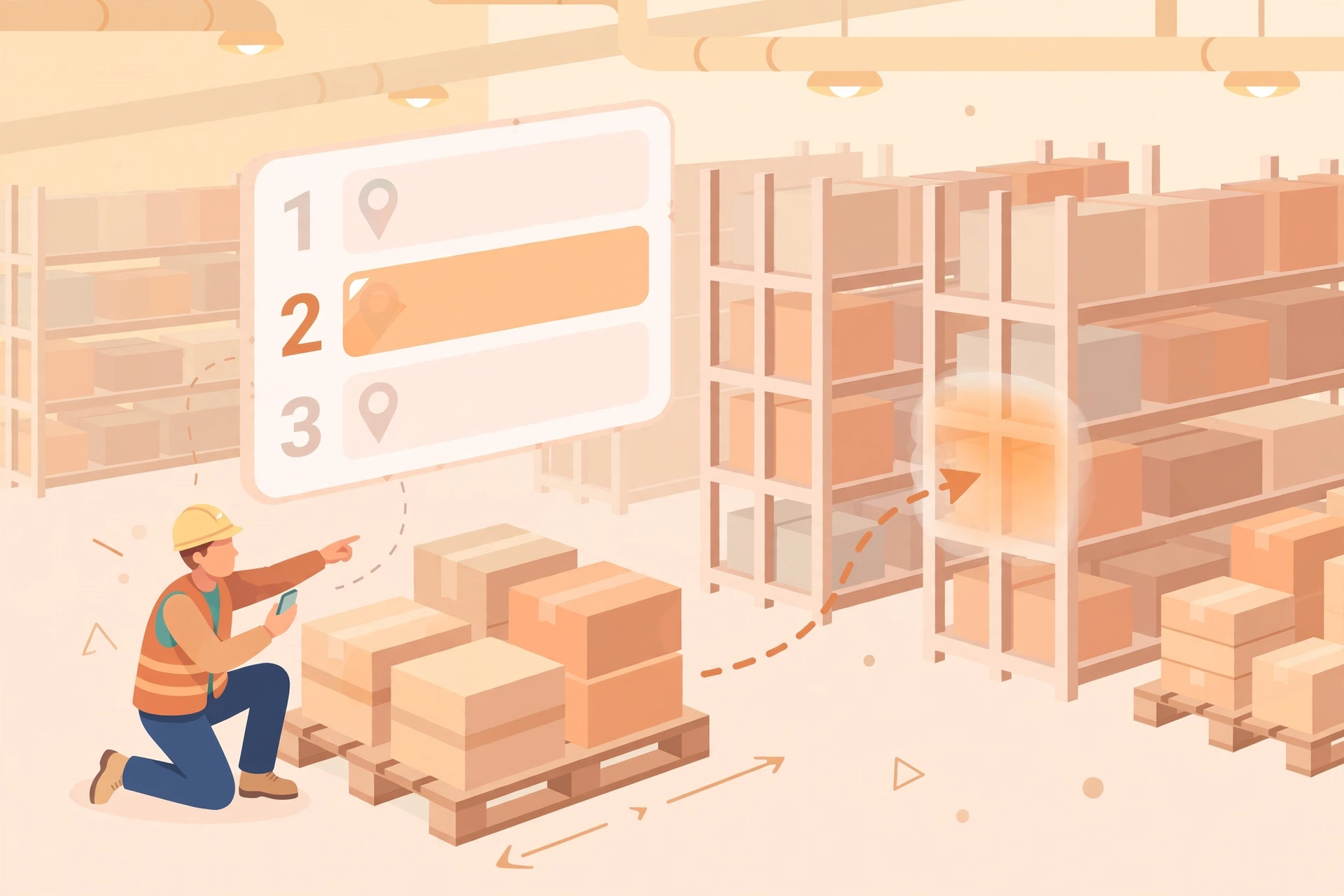
On your phone: scan a pallet — the putaway rule suggests 2-3 candidate locations — you confirm one and drop it. No task is created in advance; when you finish, the system generates a standard completed task record (with the full timeline) automatically, so it still counts in performance stats.
Locked locations#
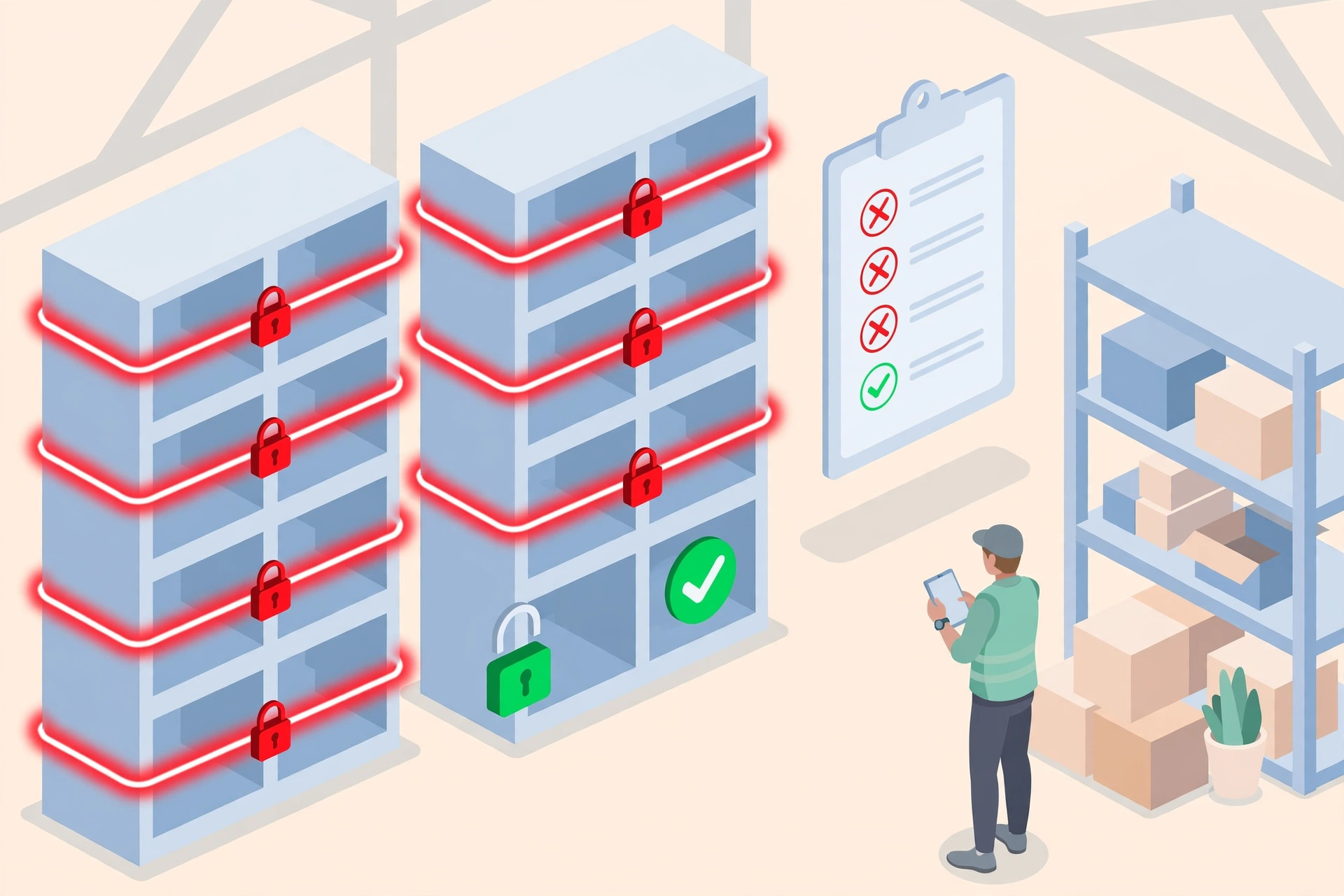
On desktop: WMS → Inventory → Locked Locations shows which locations are currently locked by cycle counts. A locked location cannot be picked from the location selector when creating picks, moves or putaways — it simply does not appear, so you never hit a ‘locked’ error later. API: GET /api/wms/inventory/locked-locations.
Clone documents#
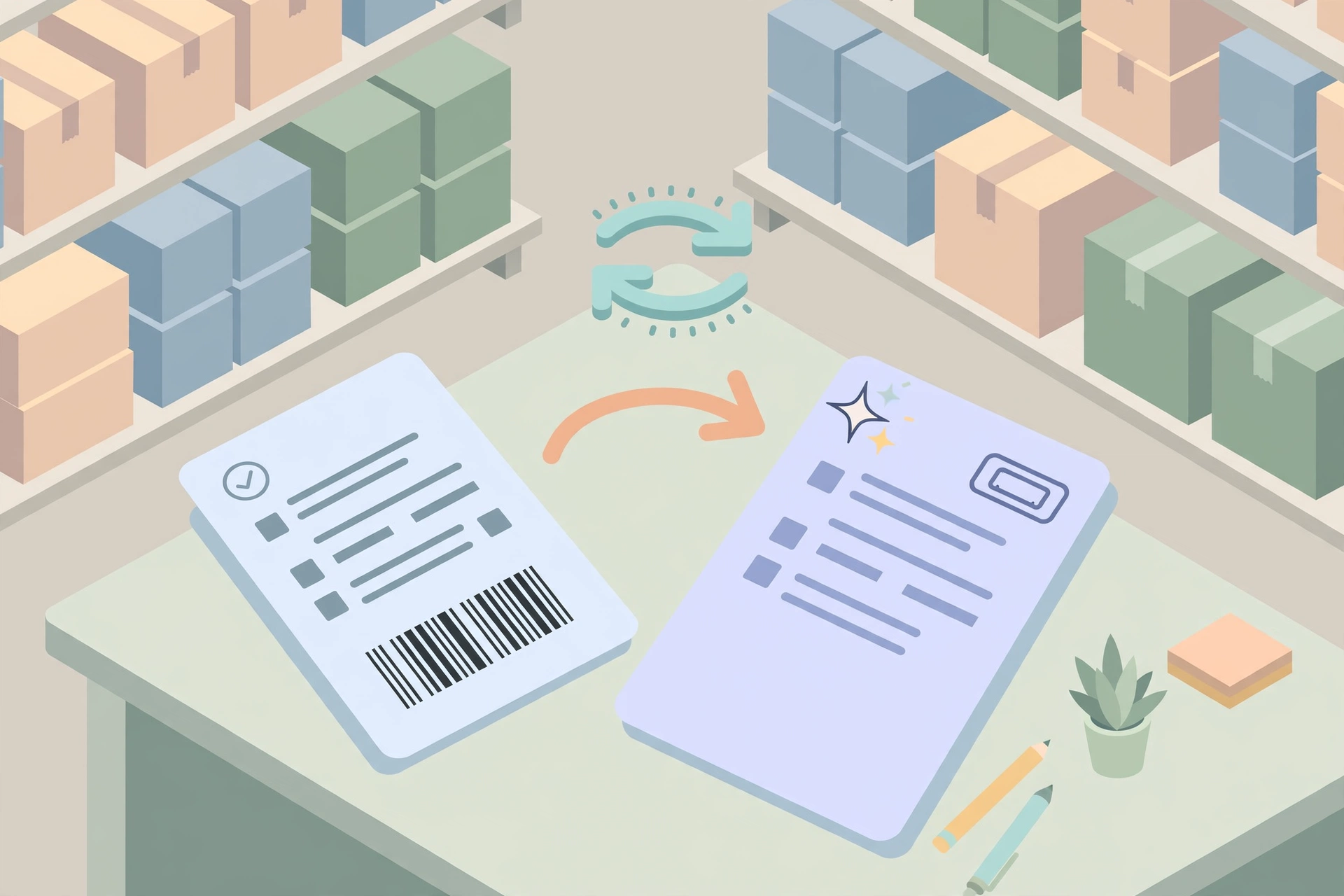
Inbound and outbound orders support Clone (POST .../[id]/clone): the system creates a brand-new document with a new document number, copying all line items over. Cloning an outbound order gives you a new OO- document you can edit freely — handy when the same client repeats an order.
Move task due times#
Move and replenishment tasks now get a due time when they are created, using the SLA hours configured in Task Rules (defaults: move 4 hours, replenishment 8 hours, quick on-the-spot moves 24 hours). A move task past its due time is flagged overdue in the task list and counted in the task monitor, exactly like picking or putaway tasks — so supervisors see late moves in the same place as every other late task.