The life of a shipment: how goods flow through a warehouse
Follow one shipment from the dock door to the outbound truck: receiving, QC, putaway, storage, picking, consolidation, packing, staging and shipping — what happens at each stop, how long it should stay, and where warehouses get stuck.
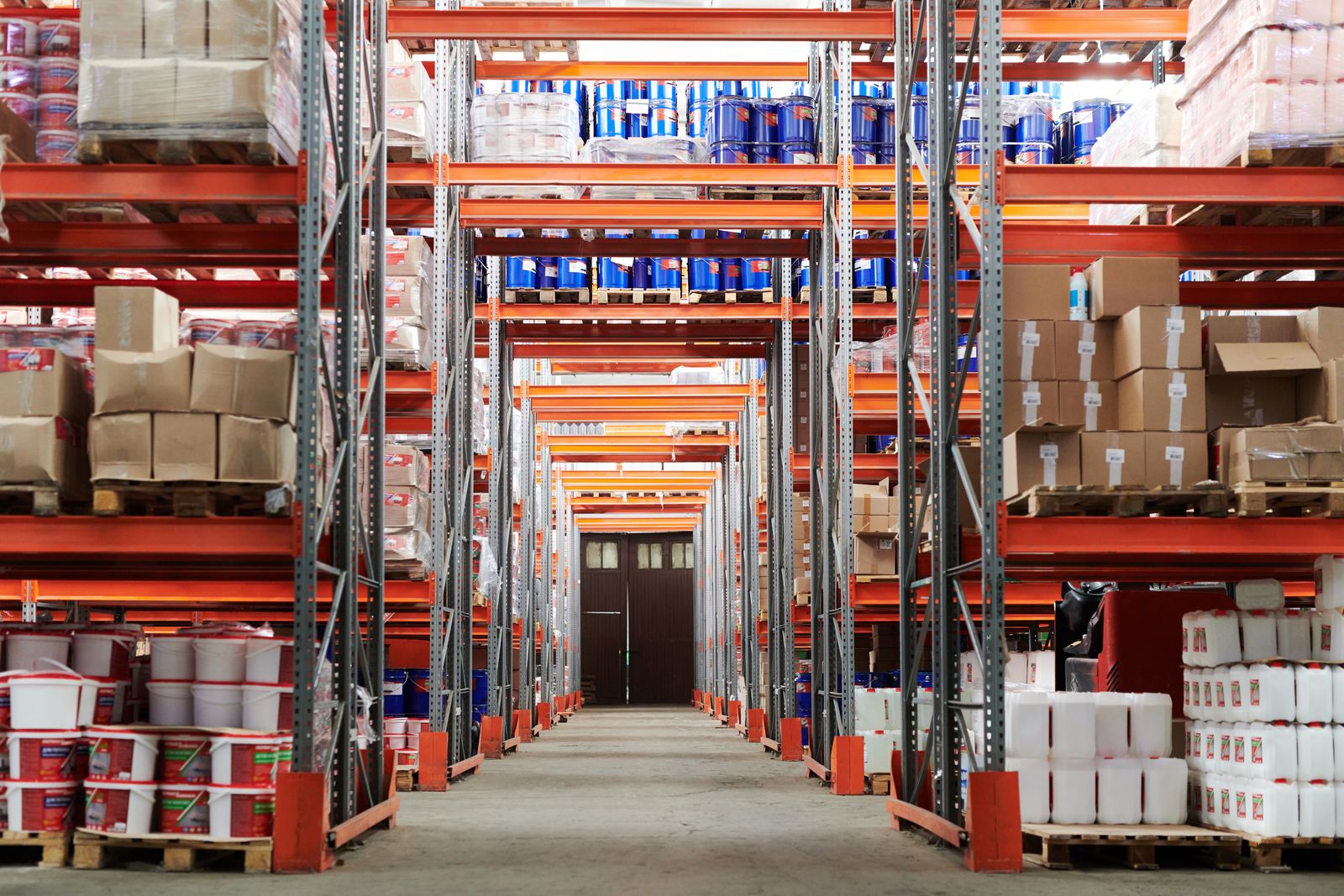
A warehouse looks complicated, but its job is simple: let every shipment walk one road that never turns back. Goods enter at one end, change form a few times along the way — pallet to stock, stock to picked items, items to a sealed carton — and leave at the other end. When a warehouse feels chaotic, the cause is almost always the same: the road loops, crosses itself, or has a stop that is too small.
The nine stops, one by one#
Stop 1 — Receiving: the goods become your problem
A truck backs into the dock, the door opens, and pallets or cartons are unloaded into the receiving area. The team counts against the delivery note: how many pallets, how many cartons, any crushed corners or wet boxes. Nothing here is stock yet — it is uncounted cargo sitting on your floor. A healthy receiving stop clears one truck in 30–60 minutes; if pallets are still sitting there the next morning, receiving has become storage, and the dock is already in trouble.
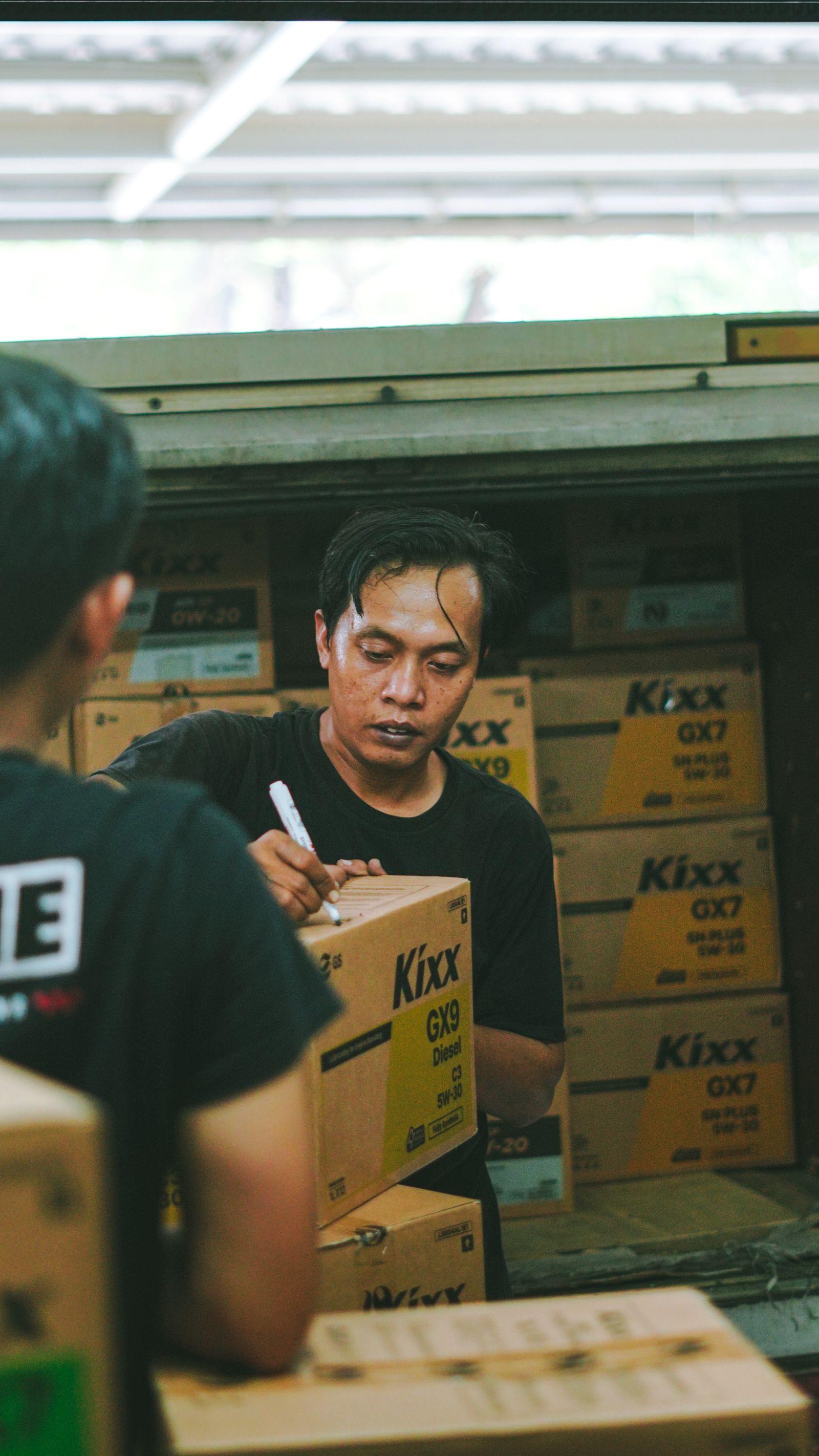
In Docklify, the paperwork for this stop lives in WMS → Receipts: create a receipt order by hand or import it — template download and bulk import are supported — and the receiving task is dispatched to the mobile app, where the team counts and confirms on the phone instead of on paper.
Stop 2 — QC: good stock in, problems aside
Quality check happens right next to receiving. Most warehouses sample rather than open everything: check the SKU, the quantity feel, expiry dates on food and cosmetics, and damage on a sample of cartons. Goods that pass move on; goods that fail — wrong item, short count, damaged — go to a clearly marked quarantine spot and wait for a decision: return, rework, or accept with a note. The rule is time: a QC decision should land within the same shift, because quarantined goods block both the floor and the paperwork.
Stop 3 — Putaway: stock gets an address
Passed goods are carried — usually by forklift for pallets — into the storage area and placed into a location. This is the moment cargo becomes stock: from now on the system can say exactly where it is and how much there is. Putaway has one golden rule: the location recorded in the system must be the location the goods physically sit in. A pallet put in the wrong slot is not a small mistake; it is stock that has vanished until someone counts the whole aisle.
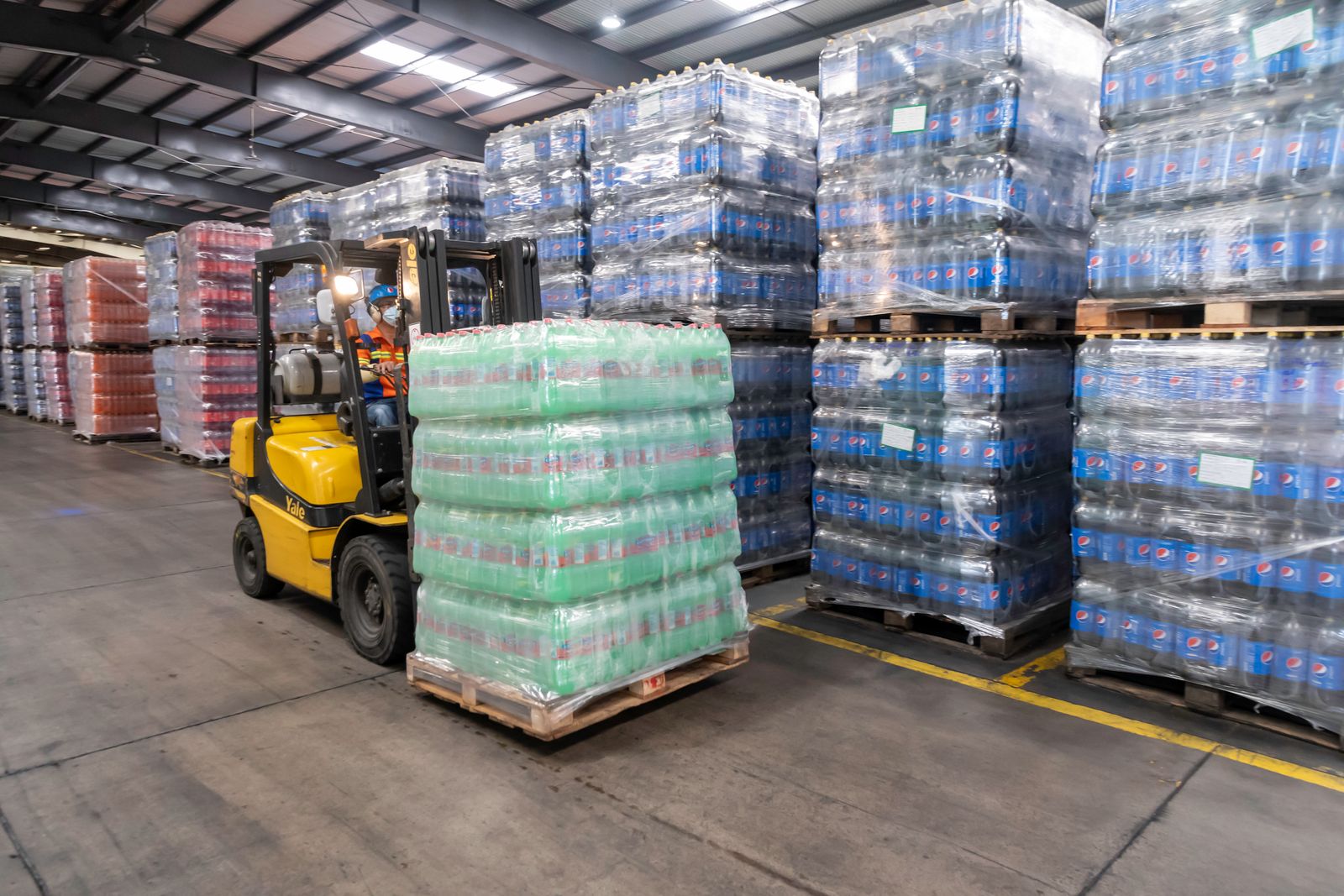
In Docklify, putaway runs as a mobile task: the system suggests 2–3 locations for each pallet based on your putaway rules, the operator picks one — and whichever location is actually used is recorded, even when it differs from the suggestion. That record of suggested versus actual is what makes later slotting analysis possible.
Stop 4 — Storage: the quiet waiting room
Storage is where goods wait for orders. Fast movers belong near the picking and packing end; slow movers can live deep in the racks. Nothing about the goods changes here — what changes is time: days for best sellers, weeks or months for the long tail. The only jobs in storage are keeping locations accurate, counting on a cycle, and moving stock forward when a front location runs empty (replenishment).
Stop 5 — Picking: an order pulls stock out
When an order arrives, stock leaves the shelf. A picker walks (or drives) a route, takes the exact quantities the order asks for, and puts them in a tote or on a cart. Picking is the most labor-heavy stop: travel time is usually more than half of it, which is why route order and zone layout matter so much. A pick should take minutes, not hours — an order that waits half a day to be picked is a warehouse falling behind its cut-off times.
In Docklify, outbound orders generate pick tasks in WMS → Outbound Orders → Create pick task, in three flavors: Order Pick (one order at a time), Batch Order Pick (several orders in one trip) and Wave Pick (a planned wave). Pickers execute the task step by step on mobile — scan the location, scan the pallet where required, confirm the quantity.
Stop 6 — Consolidation: multi-piece orders meet again
Single-item orders can skip this stop. But when one order was picked from three different aisles — or three different zones — its pieces arrive separately and must meet before packing. The consolidation area is a small buffer with numbered slots: each waiting order owns a slot until all its pieces have arrived. The discipline rule: one slot, one order, never mix. Most wrong-item shipments are born here, not at picking.
Stop 7 — Packing: items become a parcel
At the packing station the order is checked one last time — scan each item against the order — then boxed with the right carton, protected, sealed, weighed and labeled with the carrier waybill. After this stop the unit of work is no longer an item or an order; it is a parcel with a tracking number. A packing station handles one order in roughly 1–3 minutes; queues here usually mean too few stations for the order profile, not slow packers.
In Docklify this stop is the Packing Station (SaaS → WMS → Packing Station): scan to verify the order, print the waybill and the Packing List from the same screen, so the parcel, the label and the paperwork always belong to the same order.
Stop 8 — Staging: parcels wait for their truck
Packed parcels do not go straight onto a truck; trucks come on schedules. Parcels wait in the staging area, stacked by carrier and by route, until their pickup window. Staging is pure buffer — ideally hours, never days. When staging overflows, parcels end up in aisles and receiving space, and the whole road behind it jams: packing slows because there is nowhere to put finished parcels.
Stop 9 — Shipping: the road ends at the dock door
At pickup time the staged pallets or parcels are loaded, counted once more against the manifest, and the truck door closes. The goods have now left the warehouse both physically and on paper. Loading a standard truck takes 20–45 minutes; the common failure is not slow loading, it is a truck waiting because staging was not ready when it arrived.
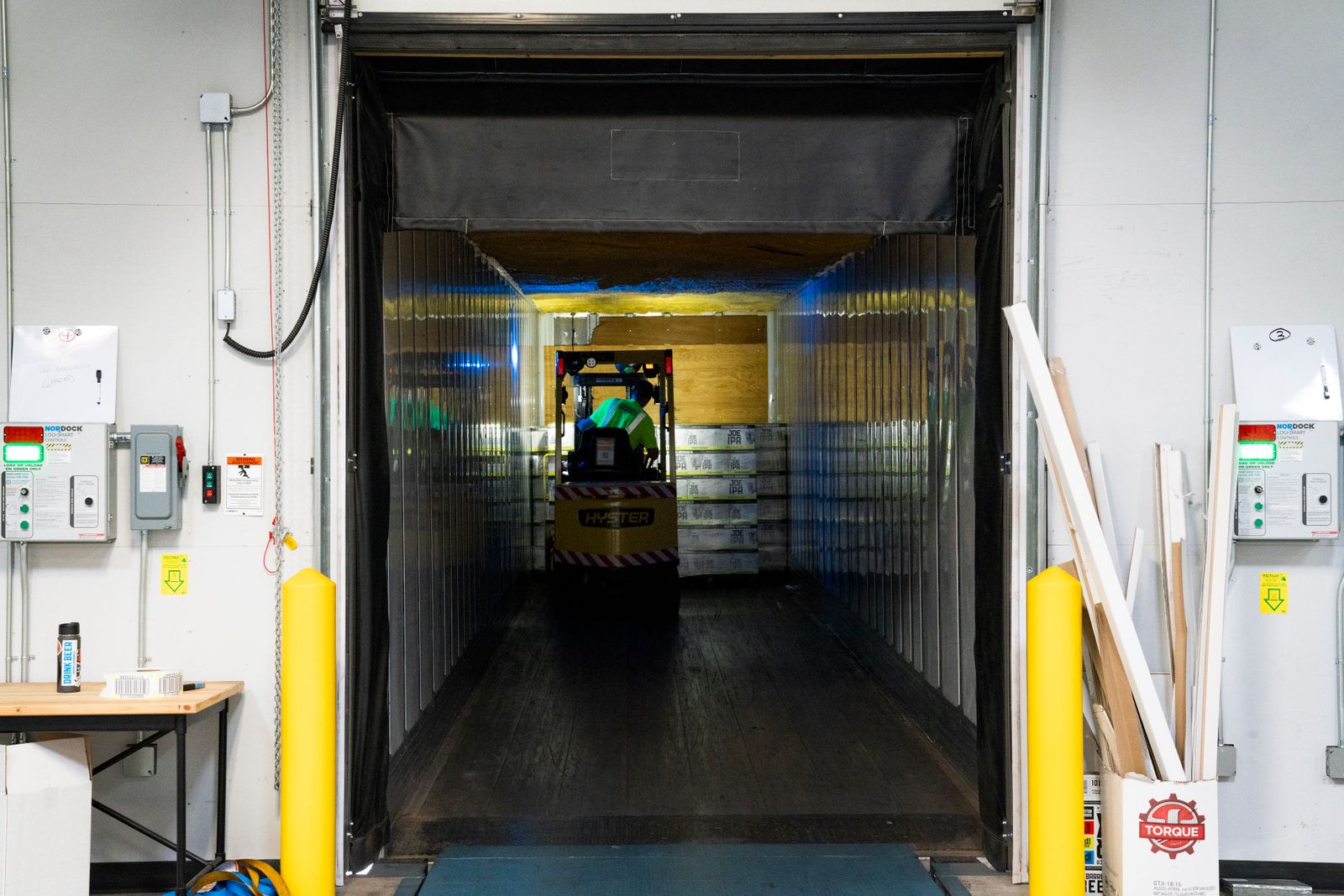
In Docklify, loading is organized with Load documents (WMS → Loads): several outbound orders are combined into one truck load, and Loads also support template import, so a recurring route can be built in bulk instead of order by order. The whole journey stays visible as it happens: every document status follows the goods — receiving, putaway, picking, packing, shipping — and the 3D warehouse view (WMS → 3D Visualization) shows live stock by location while the goods are inside.
Designing the road: three principles#
- Never walk back. The classic layouts are U-flow (receiving and shipping share one dock wall, goods loop in a U) and straight flow (receiving at one end, shipping at the other). U-flow suits small and medium warehouses and shared-dock buildings — one dock team serves both ends. Straight flow suits large sites with heavy volume at both ends, where inbound and outbound would fight over the same doors.
- Separate people and vehicles. Forklifts own the wide main aisles; pickers on foot work the rack aisles. Mark walkways, and keep the packing area pedestrian-only — the most dangerous meter in any warehouse is where a walking picker crosses a reversing forklift.
- Hot stock lives near packing. The 20% of SKUs that make 80% of orders should sit in the shortest walk from the packing stations; every meter saved is saved thousands of times a month. Re-slot a few times a year as the best-seller list changes.
Docklify features used in this article#
- Receipt orders with template download and bulk import, receiving tasks on mobile — WMS → Receipts
- Mobile putaway tasks with 2–3 rule-based location suggestions; actual placement recorded — WMS mobile app
- Pick tasks in three modes: Order Pick, Batch Order Pick, Wave Pick — WMS → Outbound Orders → Create pick task
- Scan verification, waybill and Packing List printing — SaaS → WMS → Packing Station
- Load documents combining several outbound orders into one truck, with template import — WMS → Loads
- Document statuses that follow the goods, and a live 3D warehouse view by location — WMS → 3D Visualization