CMP-05 Temperature Compliance Report
Daily temperature compliance by warehouse and zone: over-limit minutes, over-limit episodes, and record completeness.
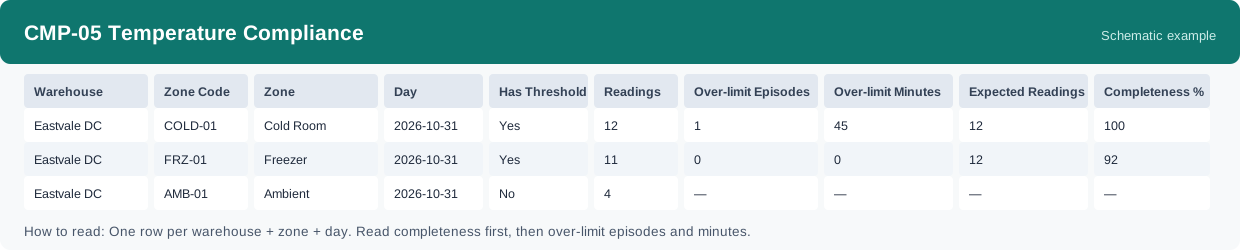
This report is the daily temperature record for controlled zones: for each warehouse, zone and day it shows how many readings were taken, how often and how long the temperature went over its limits, and how complete the day’s record is against what was expected. It uses real-time data, so new readings show up as soon as they are recorded.
What this report is for#
Use it as the daily proof that cold and controlled storage stayed in range: to review yesterday’s zones before the shift starts, to answer a client or an auditor who asks for a day’s temperature record, and to spot the zones where inspections were missed — a compliance gap even when the temperature itself was fine.
How the numbers are counted#
Each row is one warehouse, one zone and one day. Over-limit episodes count the continuous stretches spent over the limit. Over-limit minutes are estimated from intervals between neighbouring readings on the same day: an over-limit reading counts until the next reading of the same day, and intervals crossing midnight are not carried over — each cross-midnight segment counts towards its own day. Because of that, sparse manual inspections give rough durations: the fewer the readings, the rougher the estimate.
Completeness compares the reading count of the day with the expected count for the main source of the day: expected inspections per shift for manual or imported readings, or 1440 divided by the device interval in minutes when device readings exist. Zones without configured temperature limits are listed separately (Has Threshold = No) and stay out of over-limit judgement; their readings still count.
Where the settings and readings live: the temperature limits for a zone — the lowest and highest allowed temperature, and the expected inspections per shift — are maintained in the warehouse zone settings. Readings get in through the warehouse zone page, by importing a CSV file or by entering them on mobile; importing the same reading for the same zone at the same moment twice is deduplicated automatically, so a repeated file does not inflate the counts.
Dimensions and filters#
- Warehouse — which warehouse the zone belongs to
- Zone Code — the code of the temperature zone
- Zone — the name of the temperature zone
- Day — the day the readings belong to
- Has Threshold — Yes when temperature limits are configured for the zone; No zones stay out of over-limit judgement
- Readings — how many readings were recorded that day
- Over-limit Episodes — how many continuous over-limit stretches occurred
- Over-limit Minutes — the estimated total minutes over the limit that day
- Expected Readings — how many readings the day was expected to have, by the day’s main source
- Completeness % — Readings divided by Expected Readings, as a percentage
- Filters you can set: Date range, Warehouse
How to read it#
Read completeness first: a low percentage means the day’s evidence is thin — inspections were missed or readings were not imported — which is a record problem, not proof of a temperature problem. Then read the over-limit columns: episodes tell you how often it happened, minutes tell you roughly how long it lasted. Rows with Has Threshold = No are not being judged at all; if such a zone should be temperature-controlled, set its limits in the warehouse zone settings first, and only then read its completeness as a control target.
Typical uses#
- Review yesterday’s temperature compliance for every controlled zone before the shift starts
- Pull one day’s record as evidence for a client or an audit
- Find zones with low completeness and follow up on the missed inspections
- Investigate a day with over-limit minutes: how many episodes, and how long each stretch lasted
Reports features used in this article: pick this report in Reports, set the date range or warehouse filter and click Run to see the result; use Export to download the result as a CSV file; or use Subscribe to have the same view sent to your inbox on a schedule.
Note on subscriptions: your subscription and its filters are saved right away. Scheduled email delivery is being switched on in stages — sending starts as soon as delivery opens for your organization.