OUT-01 Order Status Report
Order counts and amounts by status and client.
This report shows order counts and amounts by status and client: how many orders sit in each status, and how much money each group represents. It uses real-time data, so the numbers reflect orders as they stand when you run it.
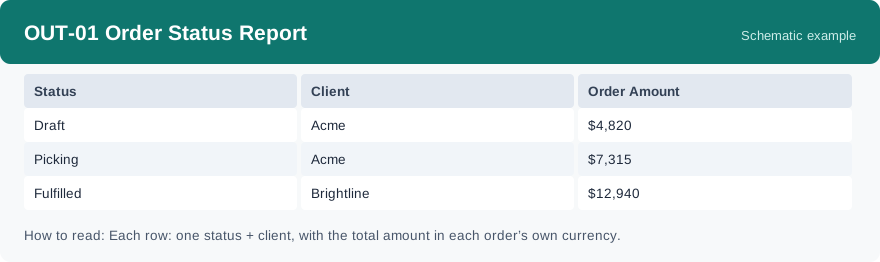
What this report is for#
Use it to see the whole order picture in one place: which statuses hold the most orders, and which clients those orders and amounts belong to. It is the starting point when a client asks how their orders are distributed, or when you review order flow for the day before looking at warehouse work.
How the numbers are counted#
Orders are counted in the period they were created. The date range works as a half-open interval: it starts at the From date (included) and ends at the To date (not included), so set the range with that in mind. The amount is each order’s total, kept in that order’s own currency. Clients may use different currencies, so do not add amounts across clients with different currencies — compare amounts within one client, or within the same currency.
Dimensions and filters#
- Status — where the order currently stands
- Client — who the orders belong to
- Order Amount — the total amount of the orders in the group, in each order’s own currency
- Filters you can set: Date range, Client
How to read it#
Each row is one status for one client, with the total order amount for that group. Set the date range first, and narrow by client if you only care about one client. Read across the row, and watch for a status whose amount keeps growing — that is where orders are piling up. When you compare amounts, keep the currency note in mind: amounts of different clients may be in different currencies.
Typical uses#
- Review how orders for the day are distributed across statuses
- Answer a client who asks how many orders they have in each status
- Compare order counts and amounts between clients for a period
- Spot a status where orders are piling up
Reports features used in this article: pick this report in Reports, set the date range or client filter and click Run to see the result; use Export to download the result as a CSV file; or use Subscribe to have the same view sent to your inbox on a schedule. Your subscription and its filters are saved right away, and scheduled email delivery is being switched on in stages — sending starts as soon as delivery opens for your organization.
How this differs from its neighbours: OUT-01 looks at orders themselves — their statuses and amounts. To follow the same business on the warehouse floor, use OUT-02 Fulfillment Progress Report for how outbound orders move through each stage, and OUT-07 Open Orders Report for the outbound orders that have not shipped yet.