Work orders: six statuses from draft to completion
How a work order moves through draft → picking → assembling → QC → completed. What to do at each step, on desktop and on mobile, and what to watch out for.
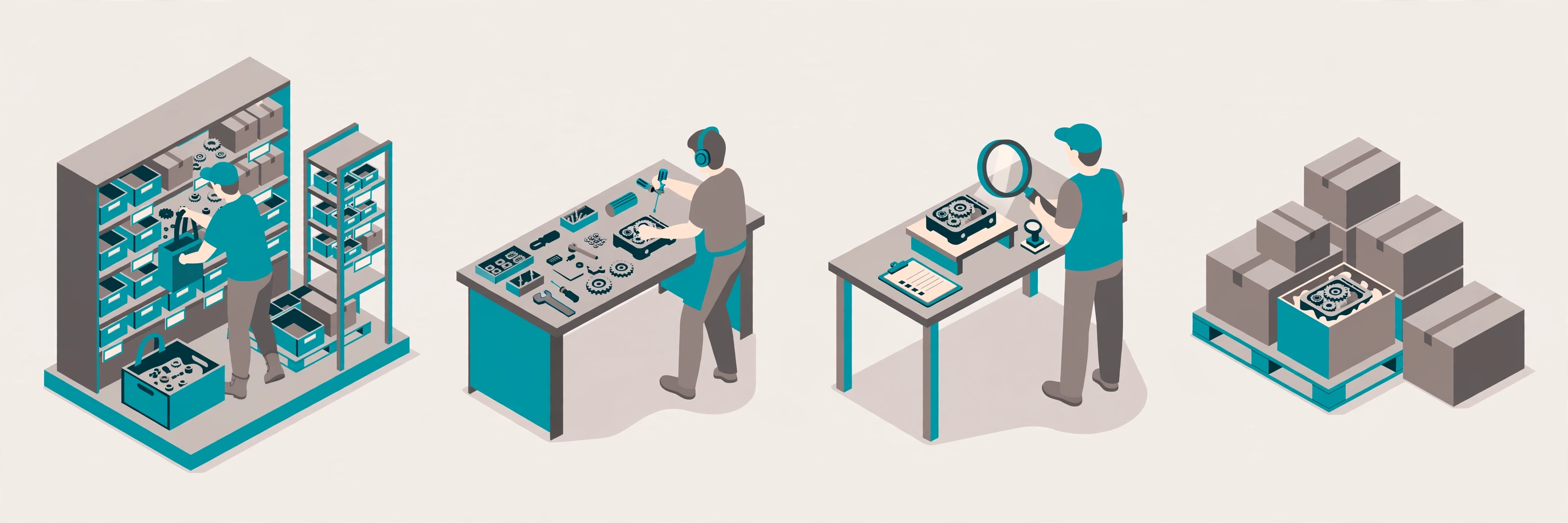
The six statuses#
draft → picking → assembling → qc → completed. Any unfinished order can be cancelled. If QC fails, the order goes back to assembling for rework. Cancelling from the desktop detail page opens a cancel dialog: you must pick a reason (required — the same reason-code list as mobile close) and can add a note; the order is cancelled only after a reason is chosen.
Step 1 — Start picking (draft → picking)#
Desktop: open WMS → Work Orders, click the order number or "View" to open the standalone detail page, then click "Start picking" on the detail page. Mobile: open the assembly task and tap "Start task". The staging location — where picked components gather before assembly — is decided once at this moment: the location bound to the work center wins, then the warehouse default (set it once under Master Data → Warehouses → the warehouse form → Assembly card; manage and bind work centers in the Work centers dialog under WMS → Work Orders → Work centers). If neither exists, starting picking is blocked and the message tells you to set one first.
For every component the system suggests where to pick from, following the client’s allocation strategy (oldest stock first, earliest expiry first, and so on). On mobile you open a component and see the suggested location, the pallet to take from and the quantity; scan the location and the product to confirm, scan the pallet LPN on storage locations, and scan the lot or each serial number when the component is tracked. Every confirmed pick moves the stock to staging right away. If the suggested location does not work, tap "Next" and pick a reason — you get the next suggestion. If there is not enough there, tap "Short / not found", enter how many you actually got and pick a reason: the rest counts as a confirmed shortage and does not block you. You can also pick from a location you found yourself ("Pick from another location myself"). On desktop, the order detail shows every pick line (location, pallet, lot, serial numbers, quantities) as it happens.
Step 2 — Start assembly (picking → assembling)#
Click "Start assembly" — every component must be settled first: either fully picked, or short-confirmed with a reason. A component that is neither blocks the start, and the message names it. When shortages were confirmed, the start screen and the order detail show the shortage summary (which component, how many short, why), so the assembler knows the plan changed before touching the product. Assign a work center if your process uses one. A short-confirmed component can be re-opened with "Keep picking" if more stock turns up.
Step 3 — QC (optional)#
If QC is enabled for the order, finished goods go through inspection before completion. Failed QC sends the order back to assembling for rework; passed QC moves it to completed.
Step 4 — Complete (assembling/qc → completed)#
Enter the finished quantity and any scrapped quantity. For each component you can enter how many were actually used — leave it blank and the system books the full picked quantity. At completion: used components are consumed from staging, finished goods are received into staging, the inventory ledger is written, and component lot → finished lot traceability is recorded. Components that were picked but not used are returned automatically to the exact locations they were picked from — nobody has to carry them back by hand. Make-to-stock orders then go through putaway; make-to-order finished goods ship directly with the order. On mobile, "Close task" on the task home does this same settlement: while still picking it closes as a force close (picked stock returns, unpicked lines are voided, a reason is required); while assembling it settles with the actual output you enter.
Things to watch#
You cannot start assembly until every component is settled — fully picked or short-confirmed. There is no Cancel on mobile: closing a task always settles it (stock returns or is booked as used), and cancelling an order is a desktop action that also settles first — picked-but-unused components go back to their original locations automatically, never left sitting in staging. Completed orders cannot be cancelled. If the warehouse has no default staging location and the work center has none bound, starting picking is blocked until an admin sets one.