OUT-02 Fulfillment Progress Report
Outbound orders by fulfillment stage (status) - the progress board numbers.
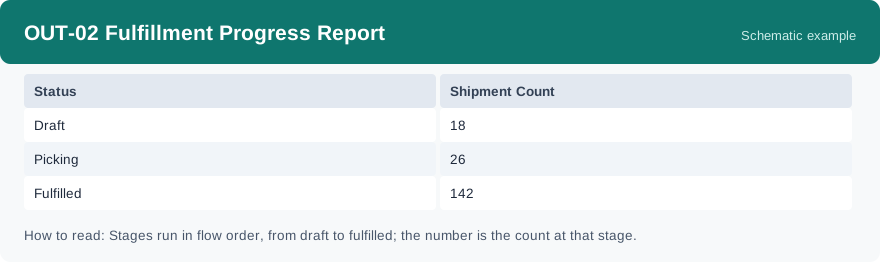
This report is the progress board for outbound orders: how many outbound orders sit at each fulfillment stage, from draft to fulfilled. It uses real-time data, so the numbers show where orders stand when you run it.
What this report is for#
Use it as the board numbers for the day: at a glance you can see how much work sits at each stage and where orders are moving or stuck. Warehouse leads use it in the morning review, and it is the quickest way to answer how far outbound work has got.
How the numbers are counted#
Each stage in this report is one outbound order status, and the stages follow the normal flow order, from draft at the start to fulfilled at the end. The number on each stage is how many outbound orders are in that status. These are the same outbound orders that OUT-07 Open Orders Report lists — OUT-07 applies a fixed filter and counts only the ones that are still open.
Dimensions and filters#
- Status — the fulfillment stage the order has reached
- Shipment Count — how many outbound orders are at that stage
- Filters you can set: Date range, Warehouse, Client
How to read it#
Read the stages in flow order, from draft to fulfilled. A healthy board moves orders steadily towards fulfilled; a stage with a much bigger count than its neighbours is where work is piling up. Set the warehouse or client filter to read one warehouse or one client on its own, and use the date range to look at a chosen period.
Typical uses#
- Morning review: how far outbound work got and where it is stuck
- Find the stage where orders pile up before a busy period
- Check progress for one client at one warehouse
Reports features used in this article: pick this report in Reports, set the date range, warehouse or client filter and click Run to see the result; use Export to download the result as a CSV file; or use Subscribe to have the same view sent to your inbox on a schedule. Your subscription and its filters are saved right away, and scheduled email delivery is being switched on in stages — sending starts as soon as delivery opens for your organization.
How this differs from its neighbours: OUT-02 counts outbound orders by stage — it is the summary board. OUT-07 Open Orders Report uses the same outbound orders but counts only the ones still open, broken down by status, client and warehouse, so use it when you need to chase what has not shipped. For order amounts by status and client, use OUT-01 Order Status Report.