Cross dock: receive, sort and ship without putaway
Scan HUs by SSCC on mobile: receiving with condition and staging slot, loading with destination check, change destination, reprint labels, and cancel tasks — all in one place.
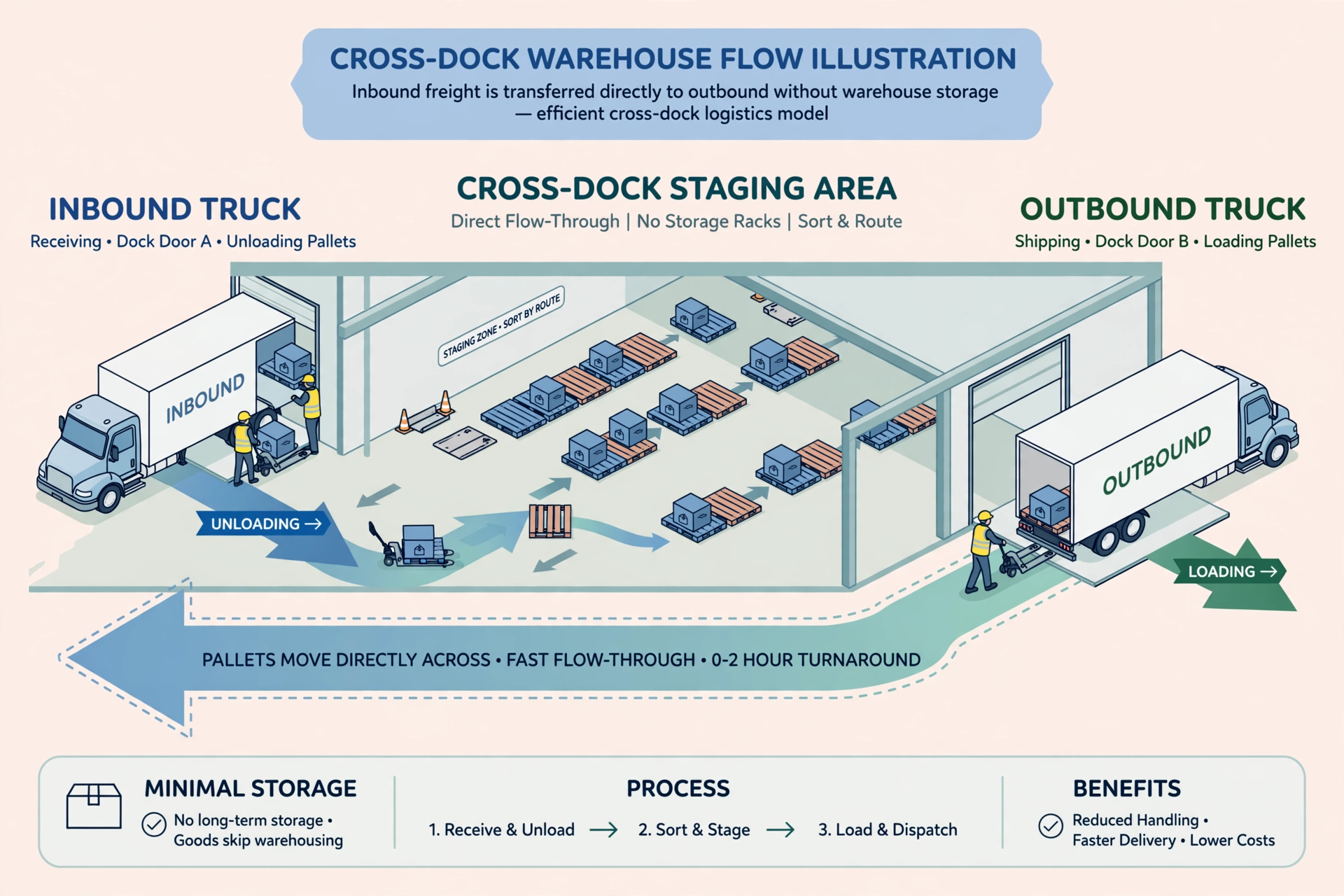
What is cross dock?#
In cross dock, inbound goods are not put away into storage. They are received at the inbound dock, sorted by destination, and loaded directly onto outbound trucks. A handling unit (HU) — pallet, carton or crate — is identified by its unique SSCC barcode from receiving to shipping.
Two task types#
- Receiving task: created from a Cross Dock inbound receipt. Workers scan each HU’s SSCC at the inbound dock.
- Shipping task: created from a Cross Dock load plus a destination. Workers scan HUs to load them onto the truck; the destination is strictly checked.
Mobile receiving#
- Open “Cross Dock Receiving” on the phone and tap a task.
- Scan the HU’s SSCC barcode (a scan gun’s Enter key submits automatically) or type it and tap Look up.
- With advance notice (ASN): the HU card shows type, destination (with dock-door hint), and contents (SKU / qty / lot). Without notice: create the HU on the spot — pick HU type, destination, and enter items.
- Choose goods condition with the big buttons: Good (default) or Damaged. A damaged HU is automatically moved to the exception area.
- Enter the staging slot (e.g. A1, optional). Tap “Confirm receiving”.
- Scanning the same SSCC twice shows a yellow “Already scanned” hint and is not counted again.
- When everything is scanned, go back to the task page and tap “Close task”. If some HUs have not arrived, choose “Some still missing” in the dialog and pick a reason — the missing HUs stay on the receipt and can be received later.
Goods condition and the exception area#
Each HU carries a condition: good or damaged. A HU scanned as damaged does not go to the normal staging area — its status becomes “exception” and the phone shows an “already moved to the exception area” banner so it can be handled separately.
Staging slots#
The staging area is divided into slots (e.g. A1, A2). When receiving, you can record which slot each HU is placed in; the slot is shown on the HU card, in the scanned list, and on the reprinted label.
The slot picker also shows how full each slot is. If occupancy cannot be loaded, the slot shows “—” (unknown) instead of a number — never treat “—” as “empty”: pick another slot or wait a moment and retry.
Mobile loading#
- Open “Cross Dock Shipping” and tap a task. The top card shows this truck’s destination — load only HUs going there.
- Scan each HU’s SSCC. If the HU’s destination does not match the truck, a big red “Destination mismatch” error appears and it is not loaded.
- The loaded HU list shows the count (and staging slot when known). Each row has a “Reprint” button for the HU label.
- When loading is done, go back to the task page and tap “Close task”: if inbound receiving for this truck is not finished, the system warns you first. On confirm, it auto-creates the outbound order (the order number is shown) from the loaded HUs and closes the truck. HUs still in the staging area are not on this order — they wait for the next truck.
Change destination#
If an HU in staging was sorted to the wrong destination, open “Change HU destination” (entry on the Cross Dock Shipping page), scan its SSCC, and the current destination is shown. Pick the new destination, optionally enter a reason, and confirm. Every change is audited (who, when, from where to where, why). HUs that are already shipped cannot change destination.
Reprint labels#
If an HU label is damaged or lost, tap “Reprint” on its row in the scanned / loaded list. The label data (SSCC, HU type, destination, condition, staging slot, contents) is shown for the printer.
Cancel a task#
Cancelling is a desktop action (the phone has no cancel button — a task that was started is finished with “Close task” instead). On the desktop task detail page, “Cancel task” aborts the task: receiving tasks roll scanned HUs back to “expected”, shipping tasks roll loaded HUs back to “staged”. Completed or already-cancelled tasks cannot be cancelled.
FAQ#
- Q: The SSCC has no advance notice. A: Use on-the-spot creation: pick HU type and destination, enter items, condition and slot, then confirm.
- Q: A damaged HU — where does it go? A: It goes to the exception area (status “exception”), not the normal staging area, for separate handling.
- Q: Wrong destination during loading? A: A big red “Destination mismatch” error blocks it. Fix it with “Change HU destination” before loading.
- Q: Can I change the destination of a shipped HU? A: No — shipped HUs are rejected, only HUs still in staging can change.