Zone Picking phase 2: clock-in, water spider, AI explanations, billing, performance
Five new pieces on top of zone picking: zone-linked clock-in, a water spider board that keeps totes moving, a plain-language AI explanation for every task split, automatic 3PL billing, and a performance dashboard per zone.
What phase 2 adds#
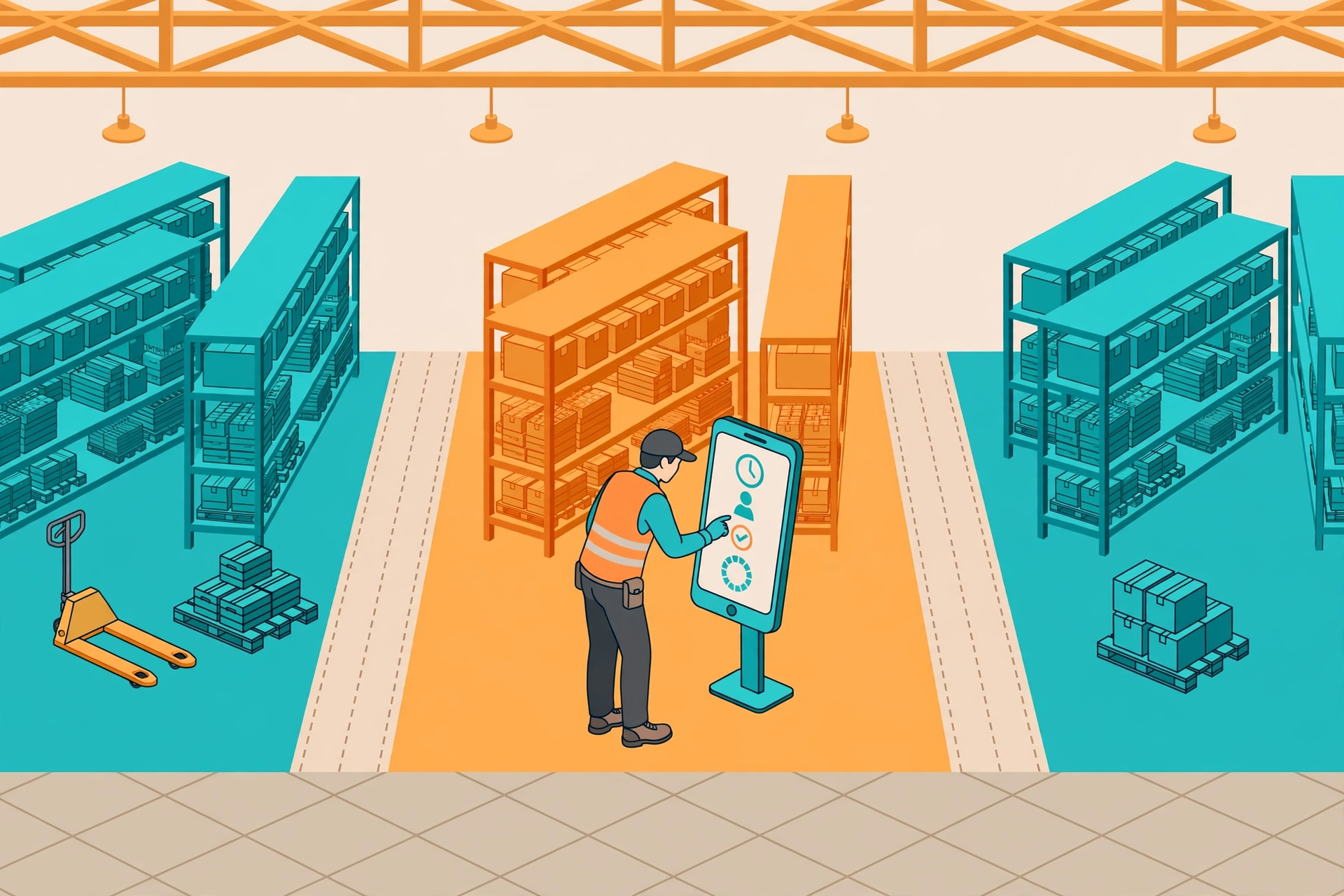
Phase 1 covered the core loop: define zones, generate zone-split tasks, pick on mobile, merge totes at the consolidation area. Phase 2 adds five features that keep the daily operation running: clock-in linked to zones, a water spider board that keeps totes moving, a plain-language explanation of why each task was split the way it was, automatic 3PL billing, and a performance dashboard. All five are pure additions — nothing from phase 1 changes.
1. Clock in picks your zone for the day#
- Clock in on your phone as usual (attend/punch). If you are bound to a fixed zone, a zone picker pops up right after clock-in — tap the zone you will cover today.
- One person, one record per day: your clock-in and today's zone are stored together, so the system always knows which zone each person is covering.
- Supervisors see today's attendance per zone on desktop. If someone is absent, redistribute their pending tasks to others in the same zone (see the phase 1 guide).
2. The water spider keeps the totes moving#
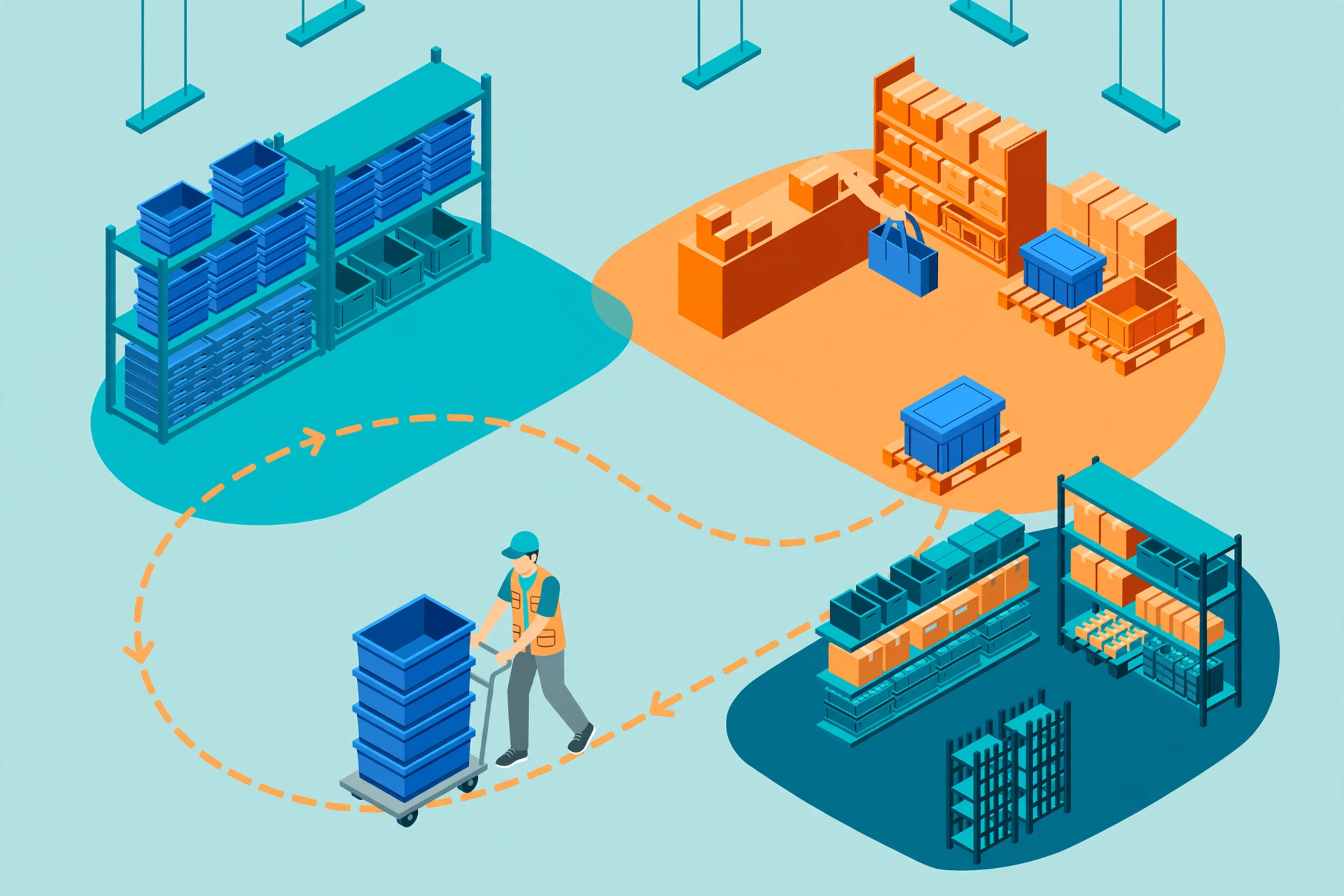
A water spider is the material handler who carries empty totes out to the zones and brings full totes back to the consolidation area. Pickers never have to leave their zone to fetch boxes — the boxes come to them.
- Every water spider task has a task number starting with WSP- (for example WSP-000123).
- Two task types: deliver_empty (carry empty totes to a zone) and collect_full (collect full totes from a zone back to the consolidation area).
- Desktop: WMS → Water Spider board shows all tasks and their status. Mobile: the water spider opens the task, does the run from the execution screen, then closes the task on the task page by entering the actual number of totes handled. If fewer totes were handled than planned, a reason must be picked when closing.
3. Every split gets a plain-language explanation#
When zone pick tasks are generated, the wizard's Step 2 shows a "why split this way" line under each task — for example: "Merged the 3 orders from Zone A into one task because they sit on the same aisle." You no longer have to guess why orders were grouped together.
- The explanations are generated from rule templates — no paid AI service is called, so they cost nothing to run.
- Available in all six languages, just like the rest of the product.
- The explanation describes what the rules did — what you actually pick is the line list inside the task.
4. 3PL billing is recorded automatically#
Warehouses that bill their clients for picking work no longer enter charges by hand. The moment a zone pick task is completed, the billing events are written automatically.
- One completed zone pick task writes one billing event WMS-ZONE-PICK.
- Multi-client tasks split the charge: if one task handled goods for several clients, each client gets its own event and only pays for its own work.
- Merging totes at the consolidation area also records one event per merge: WMS-ZONE-CONSOLIDATION.
- All events flow through the standard 3PL billing pipeline (billing_events), so they appear on statements and invoices like any other charge.
5. See how each zone is doing#
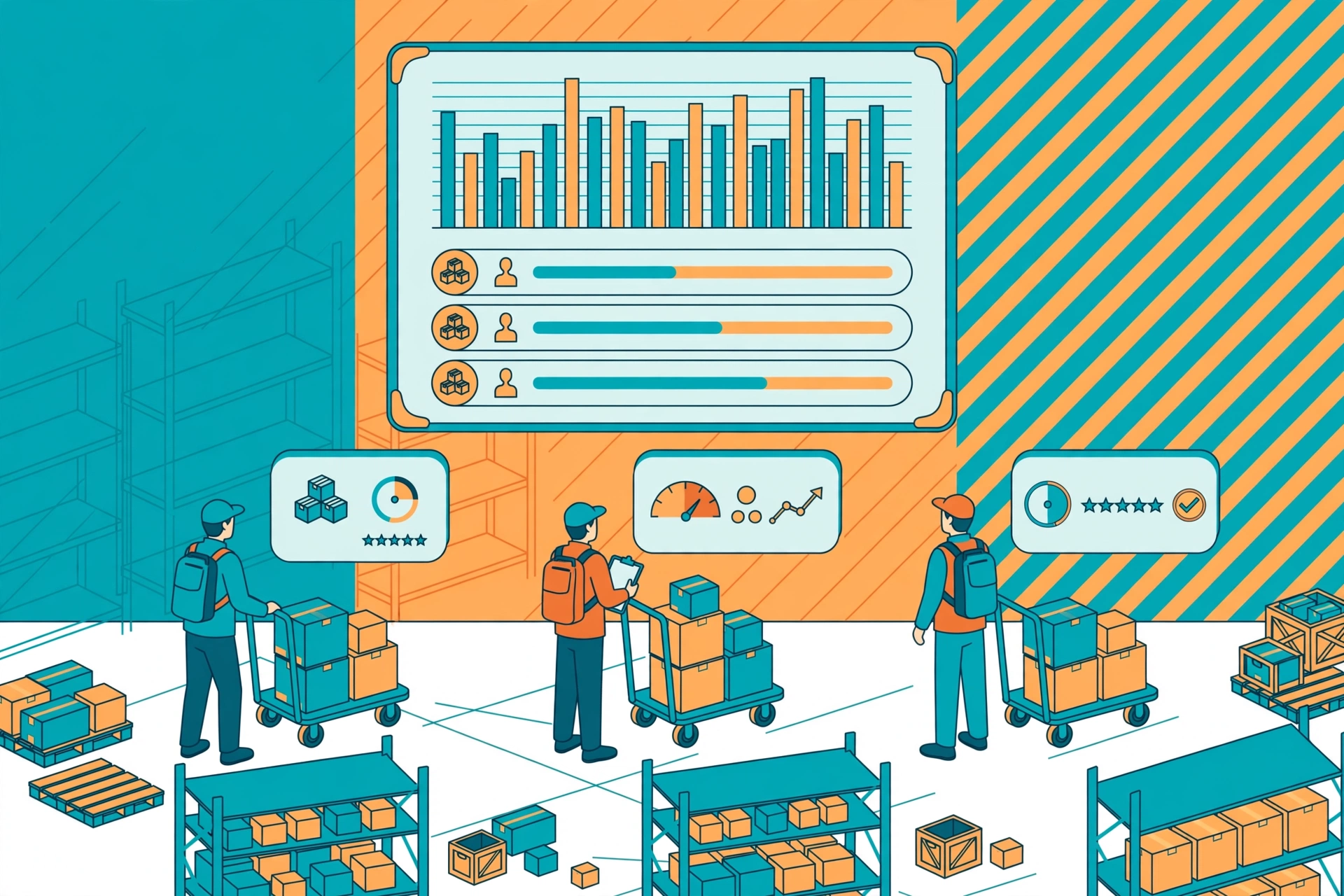
Desktop: WMS → Zone Picking → Performance. Choose a day range and compare zones side by side.
- Completion rate: the share of tasks finished on time.
- Overdue rate: the share of tasks that ran past their deadline.
- Zone averages: average pick time per zone — spot the zones that need more people or a layout fix.