Assembly & kitting: BOMs, work orders, and virtual kits
Three modes explained: make-to-stock, make-to-order, and virtual kits. Create BOMs with versions, run work orders on desktop and mobile, and trace lots from components to finished goods.
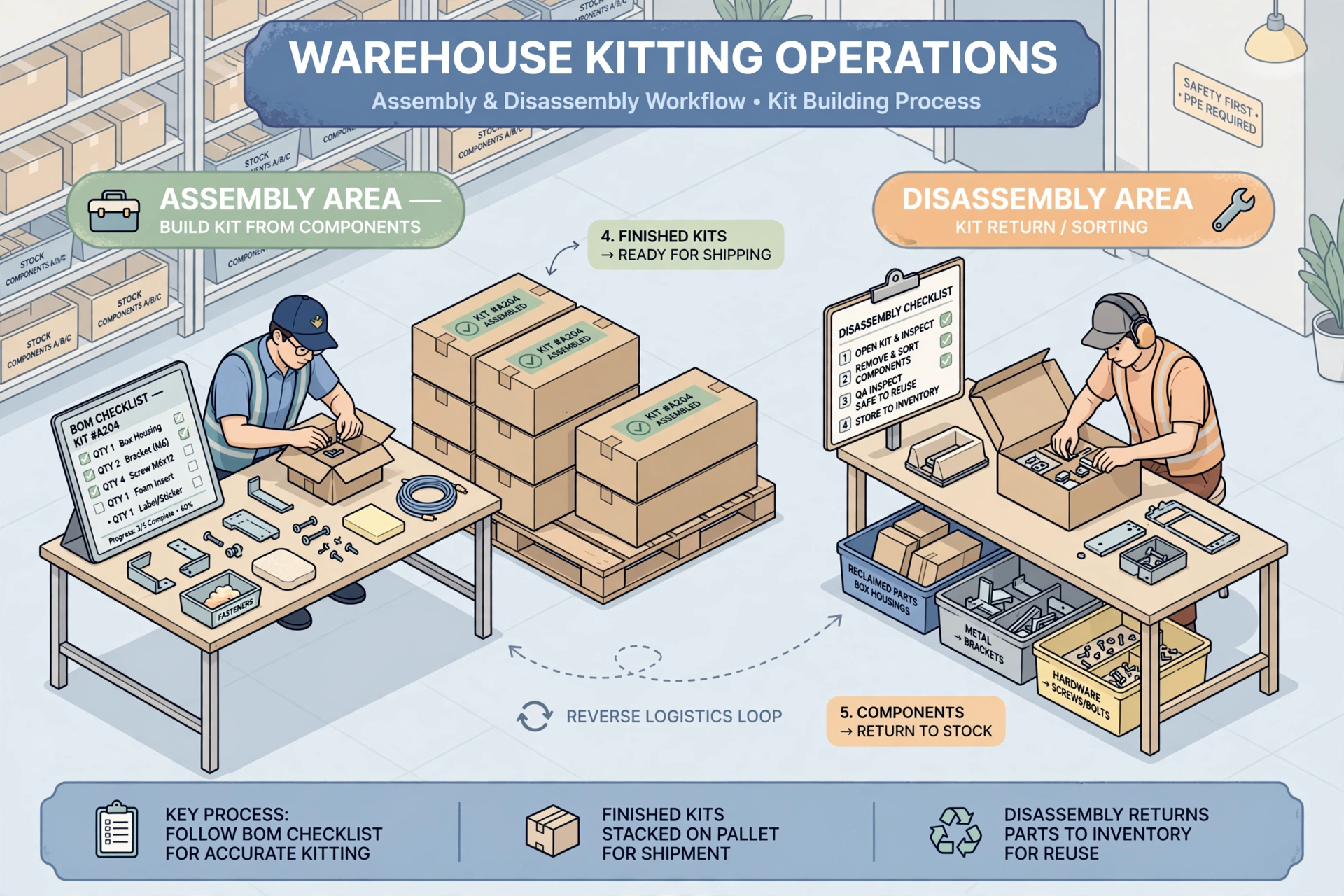
Three assembly modes#
Make-to-stock (MTS): create a work order manually, pick components, assemble, and put away finished goods. Make-to-order (MTO): when an outbound order contains a kit with an active BOM, the system auto-creates a work order linked to the order; finished goods ship directly without putaway. Virtual kit: the finished SKU has no inventory; the order line explodes into component lines at order creation, and pickers pick components grouped by kit.
BOM management#
Go to WMS → BOMs. To create or edit a BOM, pick both the finished product and each component from the search box: type a SKU or a name and choose from the candidates — there is no need to type a SKU or ID by hand. Add component lines with quantity and scrap %. Only one active version per finished product; activating a new version auto-archives the old one. Use Where-used to find which BOMs use a component, and Copy to clone a BOM to another finished product — pick the target finished product the same way, from the search box.
Running a work order#
Desktop (WMS → Work Orders): click "New work order" to create an MTS or disassembly order in a dialog. Click an order number or "View" in the list to open the standalone detail page — there you can check the order information and lines, follow the timeline (creation, picking, closing and other records), start picking, start assembly (every component must be settled — fully picked or short-confirmed), and complete with finished/scrapped quantities. Component consumption and lot traceability are recorded at completion, and picked-but-unused components return to their original locations automatically. Mobile (WMS → More → Assembly): the menu row shows a red count badge of your pending work orders; the list shows orders assigned to you (draft / picking / assembling / qc). Flow: start picking → follow the suggested location for each component (scan location/product/pallet, Next to skip with a reason, short-confirm what is not there) → start assembly → complete (enter finished qty / scrap qty / actual usage per component). QC-state orders are read-only on mobile — QC is handled on desktop.
MTO order cancellation#
If the outbound order is cancelled: work orders not yet started (draft/picking) are auto-cancelled; work orders already assembling go to make-to-stock (unlinked from the order, finished goods go to stock).