LastMile routes & dispatch: plan the run, assign the driver
Build LMR- routes, run heuristic optimization (nearest-neighbor + time windows + capacity), dispatch manually or by auto-dispatch rules, and monitor the dispatch board.
A route is a driver’s run sheet for the day: which stops, in which order. Every route gets a number starting with LMR-. Use it each morning to line up the day’s delivery stops into the smoothest possible sequence, then hand it to a driver.
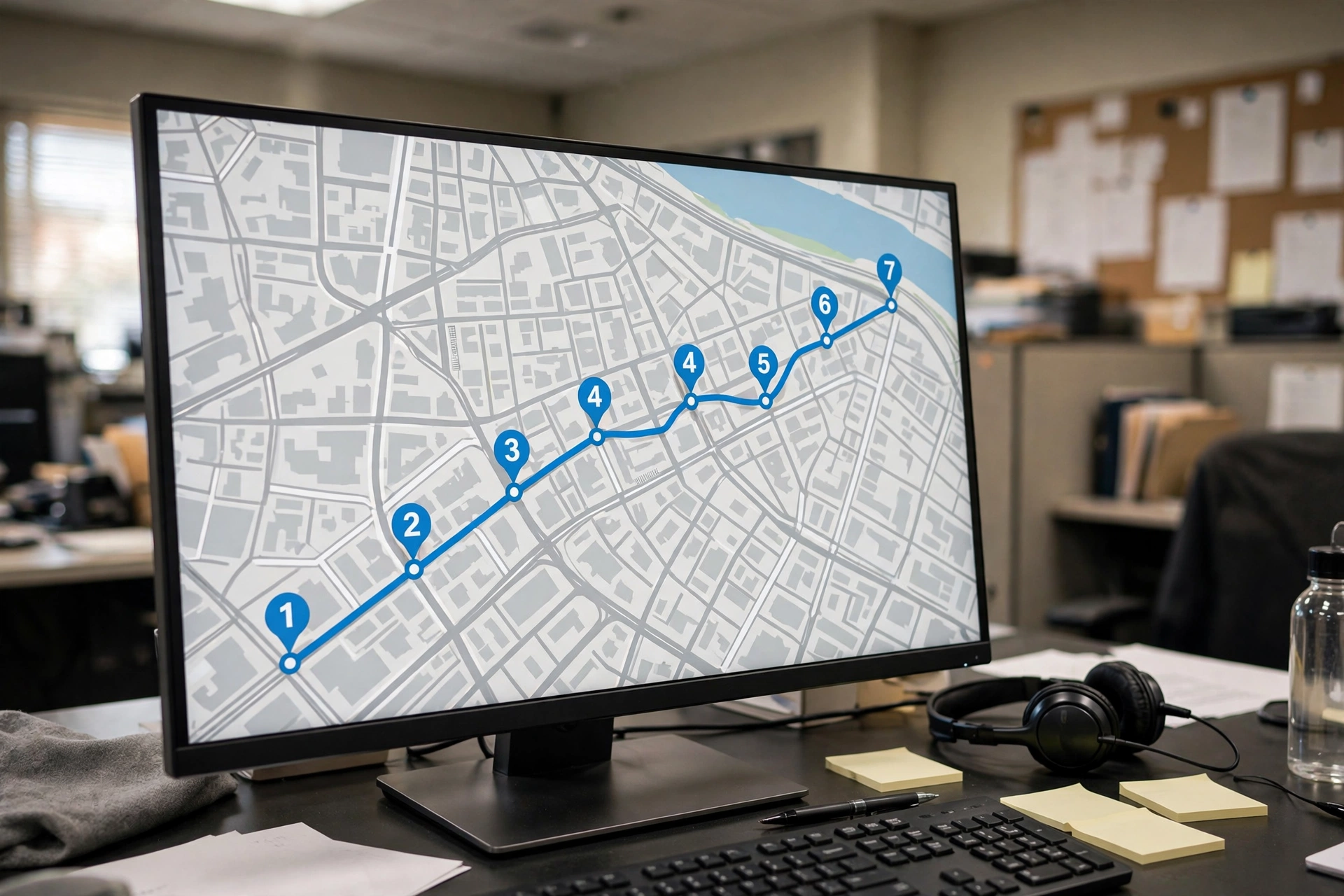
Build a route in 3 steps#
- Create the route: choose the route date and optionally the driver up front (the number LMR- is generated automatically; the route starts as planned).
- Add stops: the address is required; you can also add the contact name, phone, a delivery time window ("must arrive between 2pm and 4pm"), and the expected service time at the door.
- Run "optimize": the system reorders the stops and writes back the visit sequence and the planned ETA for each stop.
What does "heuristic optimization" mean? It is a clever approximation: instead of trying every possible order (impossible once you have many stops), it uses nearest-neighbor — always go to the closest unvisited stop next — plus a penalty for stops that would miss their time window, and a capacity cutoff (if the vehicle’s pallet or stop limit is exceeded, the remaining stops are flagged over_capacity and kept in their original relative order, nothing is deleted). Three modes: balanced (default, respects time windows), fastest (pure shortest distance), eco (distance weighted 1.5x, saves fuel). Travel time is estimated at 30 km/h city speed.
Dispatch: manual or automatic#
Manual dispatch is simple: open a delivery and assign it to a route (pending/failed → assigned). For volume, build auto-dispatch rules: each rule has conditions (zones matched by address/city/postal substring, handling units, hubs) checked in priority order, and one of three strategies — nearest_driver (the driver whose latest GPS position is closest to the task; falls back to the first candidate if nobody reports coordinates), zone_driver (always the fixed driver on the rule), or round_robin (takes turns across the driver list; the cursor is saved on the rule so it never loses its place). Turn on auto_create_route and the run will also generate an LMR- route with stops and hang the tasks on it.
Watch the dispatch board#
The dispatch overview shows, for today by default: each on-duty driver’s latest reported position, today’s and in-progress routes, and per-stop progress. Its alerts call out the exceptions: a driver whose position hasn’t updated for 20 minutes, a driver reporting no position at all, a stop whose ETA is overdue, a route with no driver assigned, or an optimization that failed.
Pallets: how volume is counted#
If a shipment goes out as full pallets, mark the order as a pallet shipment: when routing, that stop's volume is counted as "pieces x default pallet volume" instead of per-piece volume. Without this, a pallet shipment with no per-piece volume entered would be counted far too small, and more freight than fits could end up on the same truck.
- The default pallet volume is set in the routing policy: 1.2 m3 by default (standard pallet size); each tenant can change it.
- Weight is unaffected: still "pieces x per-piece weight" — enter the pallet's gross weight as the per-piece weight.