Wave Monitor: track progress, add rush orders, pull back orders
Last updated 2026-10-18
After waves are released: real-time pick progress per wave, who is picking, and two emergency moves — add a rush order into a running wave, or pull back an order that has not started.
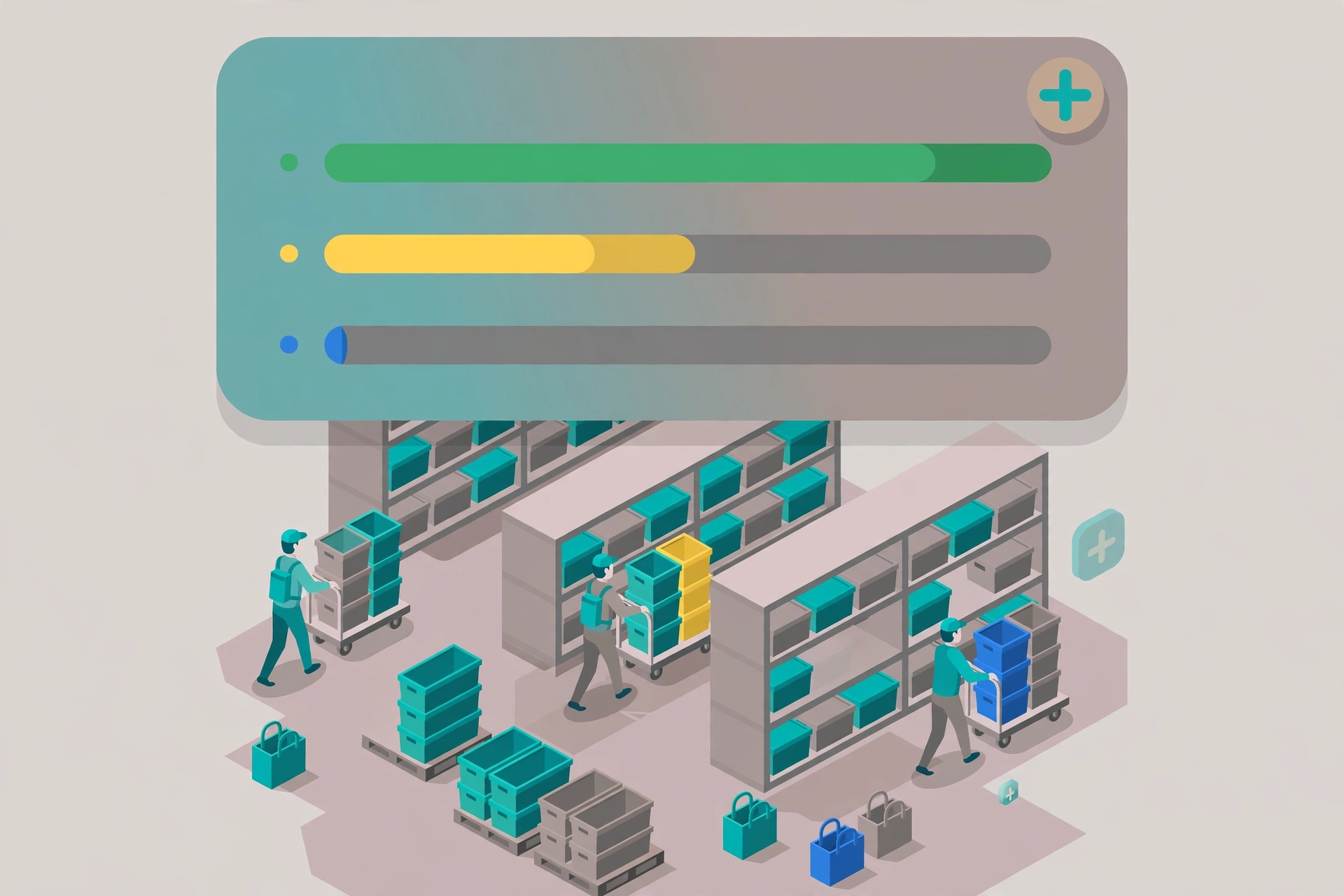
Wave Monitor answers the question every shift lead asks at 3pm: "where is my wave?" Open WMS → Wave Release → Wave Monitor. Each row is one released wave: wave number, which template it came from, a pick progress bar (picked / total), how many pickers are on it, when it was released, and its status.
Reading the board#
- Progress bar: picked orders ÷ total orders in the wave. Green when moving, and you can see at a glance which wave is stuck.
- Pickers: how many people are working this wave right now.
- Released At: when the wave dropped. Old + slow = go look.
Wave detail#
Click View on any wave to open its detail drawer: the full order list inside the wave. Each order shows its order number, order status, pick status (Not started / Picking / Picked), and who is picking it.
Add a rush order#
- In the wave detail, click "+ Add Orders".
- Only allocated orders of the same client and same warehouse can be added — the picker list is already filtered for you.
- The order joins the running wave immediately; its pick task is generated right away.
Pull back an order#
- In the wave detail, tick the orders and click "Remove Selected".
- Only orders that have not started picking can be removed. Started ones are locked — the checkbox is disabled and tells you why.
- Removed orders go back to the order pool and can join a later wave.
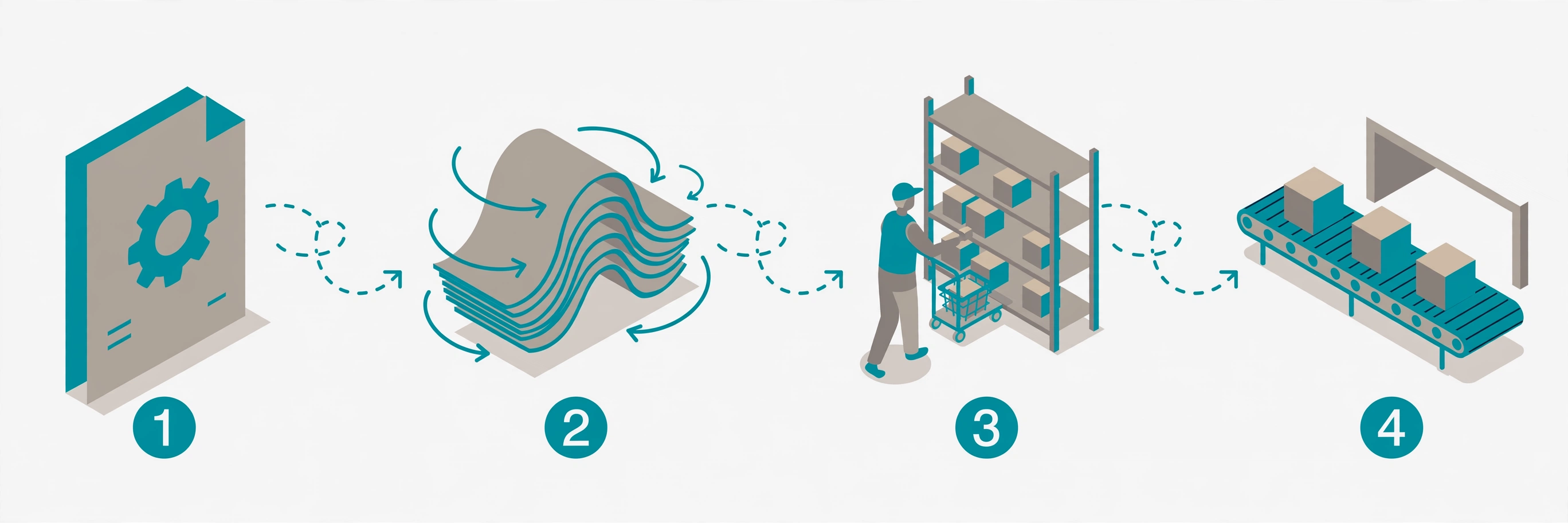
Removing an order that is already being picked is blocked on purpose: half-picked stock would end up in limbo. If the customer really cancels mid-pick, finish the pick and handle it as a return.
Typical day#
- Morning: Release Waves shows per-template "N orders ready" — release the morning waves (or let the scheduler do it).
- Afternoon: watch Wave Monitor. A wave that is old and slow gets a visit on the floor.
- Rush order arrives: find the running wave in Monitor → + Add Orders → it is picked in the same trip.
- Customer cancels: find the order in the wave detail → Remove (if not started) → it returns to the pool.