INV-09 Expiry / FEFO Alert Report
On-hand and allocated quantities grouped by lot expiry date, soonest dates first in use.
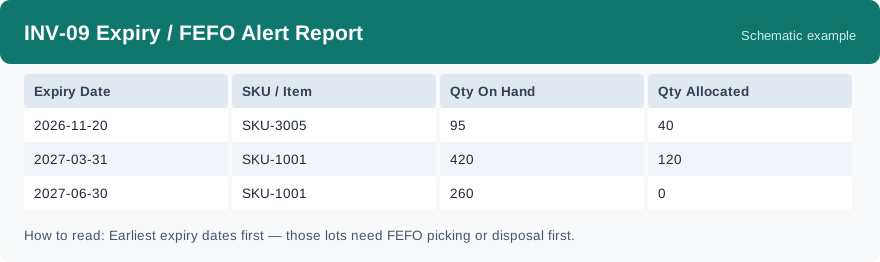
This report groups the on-hand and allocated quantities by lot expiry date, so the lots that expire soonest stand out first. It reads live data, so what you see is the stock picture right now, not a snapshot from earlier.
What this report is for#
Use it for stock that carries an expiry date: see at a glance which lots expire soonest, pick and ship those first (FEFO — first expired, first out), and agree how to handle lots that are about to expire before they turn into a loss.
How the numbers are counted#
Each row is one expiry date and one SKU, with the on-hand and allocated quantities of the lots that carry that expiry date added up. The rows are grouped by the lot expiry date: the earlier the date, the more urgent the row is for FEFO picking and for disposal decisions.
Dimensions and filters#
- Expiry Date — the expiry date of the lot
- SKU / Item — the product
- Qty On Hand — how much of that expiry date and SKU is on hand
- Qty Allocated — how much is already allocated
- Filters you can set: warehouse and client.
How to read it#
Start at the earliest expiry dates and work down. For each row, look at the on-hand quantity together with the allocated quantity: the allocated part is already spoken for by orders, so the part you still have to move before the date arrives is the on-hand quantity that is not yet allocated. A large on-hand quantity sitting on a near date needs action first.
Typical uses#
- A regular near-expiry check: run it on a rhythm, work the earliest dates first, and keep a record of what was agreed for each lot.
- FEFO picking order: when the same SKU sits in several lots, the earliest expiry date in this report is the lot to pick from first.
- Talking to a client about lots about to expire: the expiry date, the on-hand quantity and the allocated quantity are the facts the conversation needs.
Report features used in this article: open INV-09 in Reports, set the warehouse and the client, and click Run; download the result as a CSV when you want to work through the lots as a list, or set up a subscription so the alert arrives by email on a schedule.
Note on subscriptions: your subscription and its filters are saved right away. Scheduled email delivery is being switched on in stages — sending starts as soon as delivery opens for your organization.