OUT-03 Backorder & Shortage Report
Orders waiting for allocation or only partially fulfilled, by status and client.
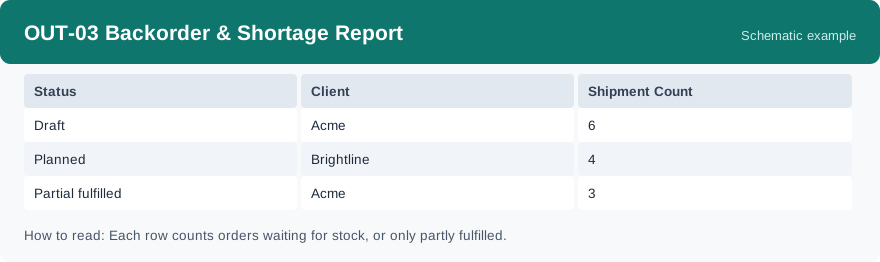
This report shows backorders: outbound orders that are waiting for allocation, or that have only been partly fulfilled, grouped by status and client. It uses real-time data, so it reflects the waiting orders as they stand when you run it.
What this report is for#
Use it when stock is the bottleneck: it tells you which clients have orders waiting, and whether those orders have not started or have already shipped in part. It is the list to work through when new stock arrives, or when a client asks why an order has not fully shipped.
How the numbers are counted#
Under the current definition, a backorder is an outbound order in one of three statuses: draft — the order is created but work has not started; planned — the order is planned and waiting for stock to be allocated; or partial_fulfilled — part of the order has been fulfilled and the rest is still waiting. These are orders waiting for stock, or only partly fulfilled. This report counts orders, not quantities: the short quantity on each order line is not shown here.
Dimensions and filters#
- Status — which of the three backorder statuses the order is in
- Client — who the waiting orders belong to
- Shipment Count — how many backorders are in the group
- Filters you can set: Date range, Warehouse, Client
How to read it#
Each row is one backorder status for one client, with the count of waiting orders. Start with partial_fulfilled rows: part of those orders has already shipped, so the client is waiting for the remainder. Then look at planned and draft rows for orders that have not moved at all. Set the warehouse filter to work one warehouse at a time, and remember the count is orders — it does not tell you how many units are short.
Typical uses#
- Work through waiting orders when new stock arrives
- Answer a client whose order has only partly shipped
- See which client is most affected by a shortage
Reports features used in this article: pick this report in Reports, set the date range, warehouse or client filter and click Run to see the result; use Export to download the result as a CSV file; or use Subscribe to have the same view sent to your inbox on a schedule. Your subscription and its filters are saved right away, and scheduled email delivery is being switched on in stages — sending starts as soon as delivery opens for your organization.
How this differs from its neighbours: OUT-07 Open Orders Report counts every outbound order that is still open; this report is the narrower view — only the orders held up by stock, waiting for allocation or partly fulfilled. After working this list, check INV-01 Stock Status Report to see what is actually on hand for the orders you want to release.