SLA: how fast each task type should finish
The SLA tab in Task Rules: one table, nine task types, default hours per type. Tasks created without a due date get one automatically; three places flag overdue work.
SLA (service level agreement) here means one simple thing: how many hours a task of each type is allowed to take before it counts as overdue. It lives as its own tab inside Task Rules: WMS → Task Rules → SLA 时效. One table, nine task types, one number per row — change the number, save, done.
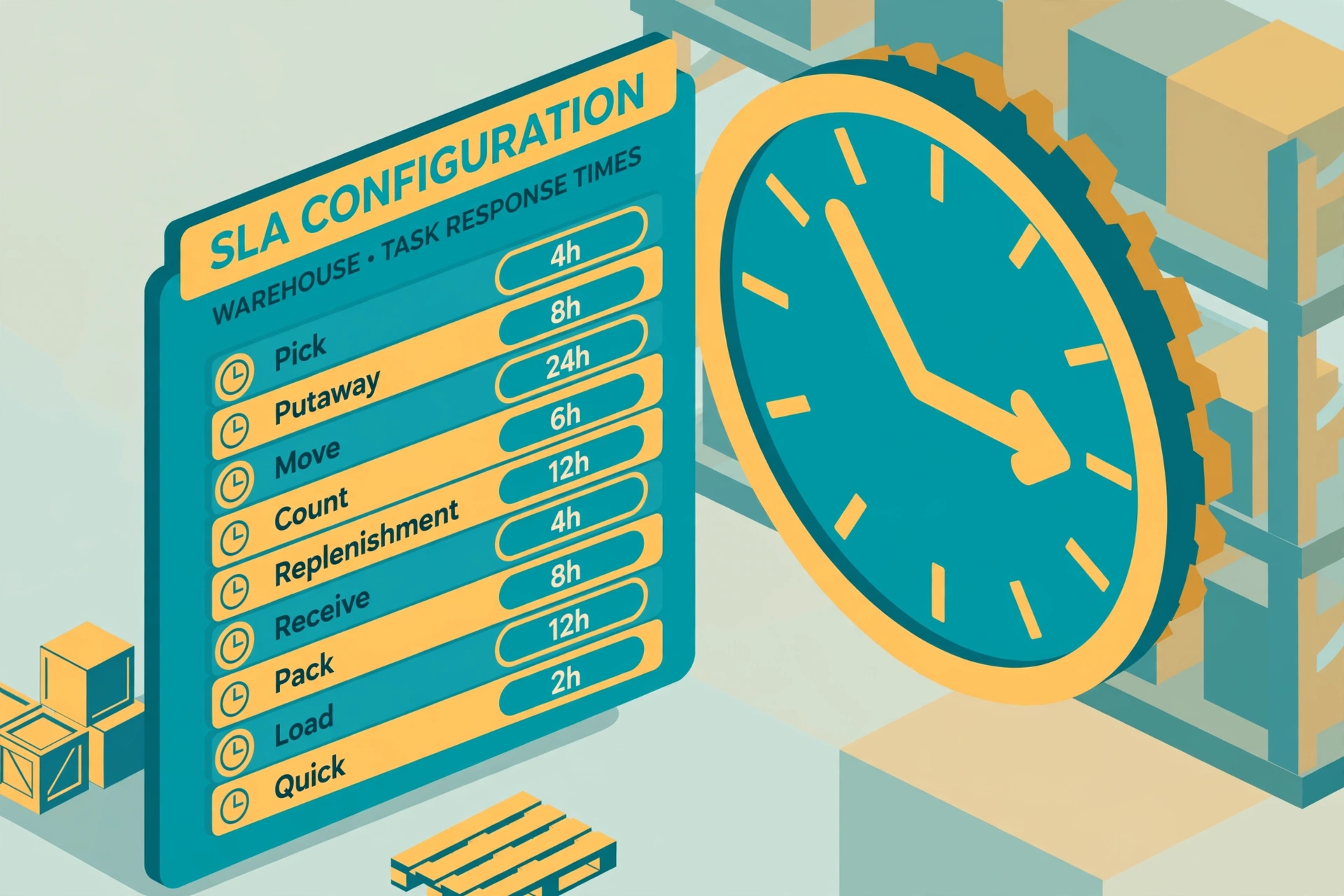
The nine task types and their defaults#
- Pick: 4 hours.
- Move: 4 hours.
- Pack: 4 hours.
- Load: 4 hours.
- Putaway: 8 hours.
- Replenishment: 8 hours.
- Receive: 8 hours.
- Count: 24 hours.
- Quick (mobile tasks): 24 hours.
When a task is created without a due date, the system fills it in automatically: creation time + that type’s SLA hours. If someone already set a due date, it is left alone — the SLA never overwrites a value a person chose.
Overdue is flagged in three places#
- Phone home screen: a red Overdue card showing how many of my assigned tasks are overdue.
- Task Monitor board: overdue tasks are highlighted red (red task number, red status tag, red "!" mark).
- Performance stats: overdue rate and average overdue hours per person and per task type.

Saving takes effect immediately — but only for tasks created afterwards. Tasks that already exist keep the due date they were born with.